




Home Blog Page 4

How to Connect Samsung TV to Mac with HDMI?

0

Connecting your Samsung TV to your Mac using an HDMI cable allows you to enjoy a larger display and better audio quality for your favorite movies, shows, and presentations. In this article, we will guide you through the step-by-step process of connecting your Samsung TV to your Mac using HDMI.

1. Check Compatibility:

Before connecting your Samsung TV to your Mac, ensure that both devices have the necessary ports and cables. Most modern Samsung TVs and Mac computers come equipped with HDMI ports, which simplifies the process. Additionally, make sure you have an HDMI cable that supports both devices.

2. Gather the Required Equipment:

To connect your Samsung TV to your Mac, you will need the following equipment:

  • Samsung TV with an HDMI port
  • Mac computer with an HDMI port
  • HDMI cable compatible with both devices

3. Connect the HDMI Cable:

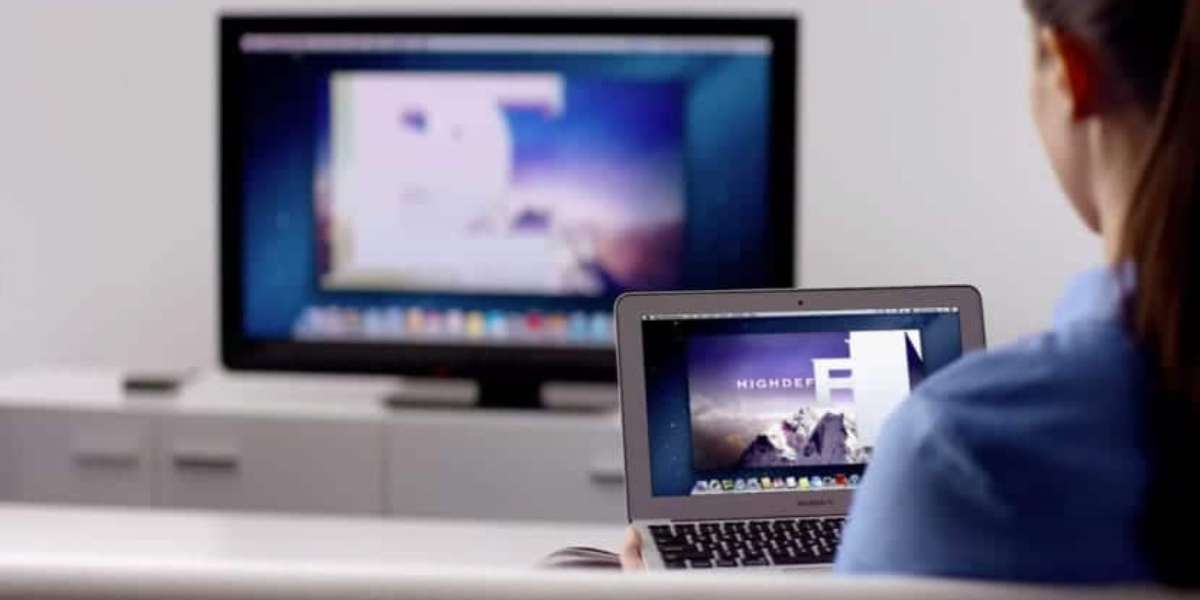
Follow these steps to connect the HDMI cable between your Samsung TV and Mac:

a. Turn off both the Samsung TV and Mac.

b. Locate the HDMI port on the back of your Samsung TV.

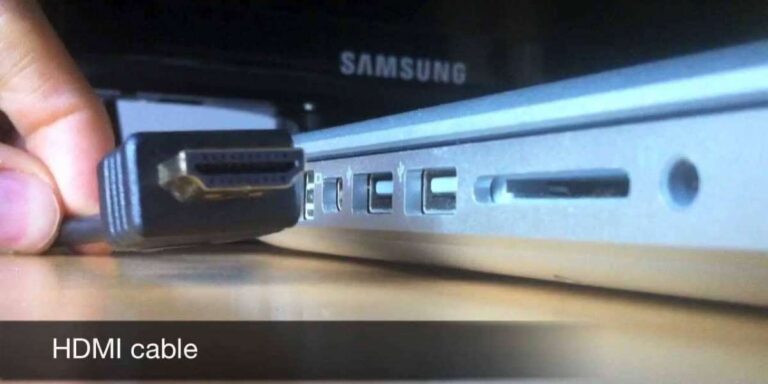
c. Insert one end of the HDMI cable into the HDMI port on your Samsung TV.

d. Locate the HDMI port on your Mac.

e. Insert the other end of the HDMI cable into the HDMI port on your Mac.
Connect the HDMI Cable

4. Configure Display Settings on Your Mac:

After connecting the HDMI cable, you may need to configure the display settings on your Mac to ensure proper functionality: a. Turn on your Samsung TV and Mac. b. On your Mac, go to the Apple menu and select “System Preferences.” c. In the System Preferences window, click on “Displays.” d. Select the “Arrangement” tab. e. Check the “Mirror Displays” option if you want the same content on both the Mac and TV screens. If you prefer to use the TV as an extended display, leave the option unchecked. f. Adjust the resolution settings to match your Samsung TV’s native resolution. This will help ensure optimal picture quality. g. Close the System Preferences window.

How to Chromecast Sling TV from Mac?

5. Select the HDMI Input on Your Samsung TV:

To see the display from your Mac on your Samsung TV, you need to select the correct HDMI input on your TV: a. On your Samsung TV remote, press the “Source” or “Input” button. b. Use the arrow keys on the remote to navigate to the HDMI input that corresponds to the port where you connected the HDMI cable. c. Press the “Enter” or “OK” button on the remote to select the HDMI input.

6. Test the Connection:

Once you have completed the previous steps, it’s time to test the connection between your Samsung TV and Mac: a. On your Mac, open any application or media file you want to display on your TV. b. The content should now be visible on your Samsung TV screen. If not, double-check the HDMI connection and display settings on your Mac.

7. Troubleshooting Tips:

If you encounter any issues while connecting your Samsung TV to your Mac using HDMI, try the following troubleshooting tips:

a. Check the HDMI cable:

Ensure that the HDMI cable is securely connected to both the TV and the Mac. If the cable is loose or damaged, try using a different HDMI cable.

b. Restart the devices:

Sometimes, a simple restart can resolve connectivity issues. Turn off both your Samsung TV and Mac, wait for a few seconds, and then turn them back on.

c. Update software and drivers:

Make sure your Mac’s operating system and Samsung TV’s firmware are up to date. Outdated software can cause compatibility issues. Visit the official websites of Apple and Samsung to download the latest updates.

d. Try a different HDMI port:

If your Samsung TV has multiple HDMI ports, try connecting the HDMI cable to a different port. It’s possible that one of the ports may not be functioning properly.

e. Check for HDCP compatibility:

HDCP (High-bandwidth Digital Content Protection) is a copy protection technology that prevents unauthorized duplication of copyrighted material. If your Mac and Samsung TV are not HDCP compliant, it may affect the connection. Check the specifications of your devices to ensure HDCP compatibility.

f. Adjust audio settings:

If you experience audio issues, go to the sound settings on your Mac and make sure the HDMI output is selected as the audio output source.

g. Use a different resolution:

If the display on your Samsung TV appears distorted or not fitting properly, try adjusting the resolution settings on your Mac. Experiment with different resolutions until you find the one that works best.

How to Level Up in Oblivion Mac?

h. Reset the PRAM/NVRAM:

On some Mac models, resetting the PRAM (Parameter Random Access Memory) or NVRAM (Non-Volatile Random-Access Memory) can help resolve display issues. Consult the official Apple support website for instructions specific to your Mac model.

Additional Tips:

Here are a few additional tips to enhance your experience when connecting your Samsung TV to your Mac:

a. Use an HDMI cable with Ethernet:

If you have a smart Samsung TV that supports internet connectivity, consider using an HDMI cable with Ethernet. This will allow you to connect your TV to the internet through your Mac’s network connection.

b. Adjust display settings on your TV:

Explore the display settings on your Samsung TV to optimize the picture quality according to your preferences. You can adjust aspects such as brightness, contrast, color temperature, and sharpness.

c. Use external speakers or sound system:

While HDMI carries both video and audio signals, you may prefer to connect external speakers or a sound system to your Samsung TV for an enhanced audio experience. Consult your TV’s manual for instructions on connecting external audio devices.

d. Explore screen mirroring options:

Besides using HDMI, you can also explore wireless screen mirroring options such as AirPlay (for Mac) or Smart View (for Samsung TVs). These methods allow you to wirelessly mirror your Mac’s screen onto your Samsung TV without the need for cables.

Conclusion:

Connecting your Samsung TV to your Mac using an HDMI cable provides a convenient way to enjoy a larger display and enhanced audio quality. By following the step-by-step instructions in this article, you can easily connect your devices and enjoy your favorite content on the big screen. Whether you want to watch movies, play games, or give presentations, the HDMI connection between your Samsung TV and Mac opens up a world of possibilities.


How to Chromecast Sling TV from Mac?

0

Chromecast is a popular device that allows you to stream content from your Mac to your television. If you’re a Sling TV user and want to enjoy your favorite shows and channels on a bigger screen, Chromecasting Sling TV from your Mac is a great option. In this article, we will guide you through the steps of Chromecasting Sling TV from your Mac. Let’s get started!

Before we begin, ensure that you have a Google Chromecast device connected to your television and that your Mac is connected to the same Wi-Fi network as the Chromecast.

1. Set Up Chromecast

If you haven’t set up your Chromecast device yet, follow these steps to get it ready:

  • Connect your Chromecast device to an available HDMI port on your television.
  • Plug the Chromecast into a power source using the provided USB cable and adapter.
  • Switch your television’s input to the HDMI port to which your Chromecast is connected.
  • On your Mac, open the Google Chrome web browser.

2. Install Google Chrome Browser

To Chromecast Sling TV from your Mac, you need to use the Google Chrome web browser. If you don’t have Google Chrome installed on your Mac, visit the official Chrome website (www.google.com/chrome) and download and install the browser.

Google Chrome provides built-in support for Chromecast, making it the ideal browser for streaming content to your television.

How to Level Up in Oblivion Mac?

3. Launch Sling TV in Google Chrome

Open Google Chrome on your Mac and visit the Sling TV website (www.sling.com). If you haven’t already done so, sign in to your Sling TV account.

Once you’re signed in, you can browse the available channels and content on Sling TV using Google Chrome, just like you would on any other web browser.

Launch Sling TV in Google Chrome

4. Start Chromecasting

To start Chromecasting Sling TV to your television, follow these steps:

  • Look for the three-dot menu icon in the top-right corner of the Google Chrome window.
  • Click on the menu icon and select “Cast” from the drop-down menu.
  • A small Cast dialog box will appear, listing the available Chromecast devices on your network.
  • Select the Chromecast device you want to use for streaming Sling TV.
  • Once you’ve selected your Chromecast device, Google Chrome will start casting the entire browser window to your television.

5. Stream Sling TV

With Google Chrome casting to your television, you can now stream Sling TV content:

  • Return to the Sling TV tab in Google Chrome and select the channel or content you want to watch.
  • The Sling TV video will play on your Mac, but it will also be mirrored on your television through the Chromecast device.
  • Use your Mac to control playback, volume, and other settings.

You can also navigate to different channels or browse the Sling TV interface on your Mac while the content continues to play on your television.

How to Reinstall Gmail on Mac?

6. Stop Casting

To stop casting Sling TV to your television, follow these steps:

  • Click on the three-dot menu icon in the top-right corner of the Google Chrome window.
  • In the drop-down menu, click on the “Cast” option again.
  • In the Cast dialog box that appears, click on the Chromecast device currently connected.
  • Google Chrome will stop casting, and the Sling TV video will only be visible on your Mac screen.

It’s important to note that when you Chromecast Sling TV from your Mac, the video playback quality may be affected by your network connection. For the best streaming experience, ensure that your Mac and Chromecast are connected to a stable and high-speed Wi-Fi network.

Additionally, you can enhance your Sling TV streaming experience by using the Sling TV mobile app as a remote control. Once you have started casting Sling TV from your Mac, open the Sling TV app on your smartphone or tablet. The app will detect the casting session and display a remote control interface, allowing you to control playback, browse channels, adjust volume, and perform other functions directly from your mobile device.

Remember to keep your Mac and Chromecast devices updated with the latest software versions. This ensures compatibility and smooth performance when Chromecasting Sling TV or any other content from your Mac to your television.

In conclusion, Chromecasting Sling TV from your Mac to your television is a simple and convenient way to enjoy your favorite live and on-demand content on a bigger screen. By following the steps outlined in this article, you can set up your Chromecast, install Google Chrome, launch Sling TV in the browser, start casting, and stream your favorite Sling TV channels and shows to your television.

Ensure that your Mac and Chromecast are connected to the same Wi-Fi network and have a stable internet connection for optimal streaming quality. Take advantage of the Sling TV mobile app as a remote control to enhance your viewing experience.

Sit back, relax, and enjoy the wide variety of entertainment options that Sling TV has to offer, all from the comfort of your living room. Happy streaming!

How to Level Up in Oblivion Mac?

0

The Elder Scrolls IV: Oblivion is an immersive and expansive role-playing game that offers players a vast open world to explore. As you progress through the game, leveling up your character becomes essential for facing tougher challenges and becoming more powerful. If you’re playing Oblivion on a Mac and want to know how to level up effectively, this article will guide you through the process. Let’s dive in!

Understanding the Leveling System

Before we delve into leveling up, it’s important to understand how the leveling system works in Oblivion. In the game, your character’s attributes and skills determine their overall effectiveness. Each time you level up, you can increase your attributes and improve your skills.

Attributes: There are eight primary attributes in Oblivion, including Strength, Intelligence, Willpower, Agility, Speed, Endurance, Personality, and Luck. These attributes govern various aspects of your character’s abilities.

Skills: There are 21 different skills in Oblivion, such as Blade, Destruction, Sneak, and Restoration. These skills represent the specific abilities your character possesses.

Increase Skills and Gain Experience

To level up in Oblivion, you need to increase your skills and gain experience points (XP). The more you use a particular skill, the more it will improve, and you will gain XP. For example, if you use a sword often, your Blade skill will increase, and you will earn XP in that skill.

It’s important to focus on improving the skills that align with your character’s playstyle. If you’re a mage, invest in magic-related skills, while a warrior should focus on combat skills like Blade or Heavy Armor.

Increase Skills and Gain Experience

Resting to Level Up

In Oblivion, leveling up occurs when you rest and sleep. To level up your character, find a bed or sleeping area and activate it. This opens the rest menu, where you can choose how long you want to sleep.

The number of skills you increase during your rest determines how many attribute points you can distribute when you level up. For each skill that increases by a total of 10 points, you can choose to increase the governing attribute by one point.

It’s essential to plan your skill increases strategically to maximize attribute gains. Keep track of the skills you’re focusing on and make sure you level them up efficiently.

How to Reinstall Gmail on Mac?

Efficient Leveling Technique

To optimize your leveling process, you can use the Efficient Leveling technique in Oblivion. This technique involves focusing on specific skills to increase attributes effectively.

Choose three major skills that you want to level up quickly. These skills should be the ones you plan to use most frequently. It’s recommended to select skills from different attribute groups to ensure balanced attribute gains.

Next, choose seven minor skills that you don’t plan to use as often. These skills should be from the same attribute groups as your major skills.

By using this technique, you can increase your major skills regularly and control when you level up. When you’re ready to level up, make sure your major skills have increased enough to gain multiple attribute points.

Customizing Your Leveling Experience

If you want more control over your leveling experience, Oblivion allows you to customize it using the “Efficient Leveling” or “Realistic Leveling” mods. These mods offer alternative leveling systems that give you more flexibility in character progression.

To install mods on Oblivion for Mac, you can use tools like Nexus Mod Manager or Wrye Bash. These tools help you manage and install mods easily.

However, it’s important to note that modding your game may affect its stability or compatibility with other mods. Always read mod descriptions and user reviews before installing them, and make sure to back up your game files before making any modifications.

Utilizing Training

Another way to level up your skills in Oblivion is through training. Throughout the game, you can find various trainers who offer their expertise in specific skills. By paying them gold, you can receive training sessions that increase your skill levels.

To find trainers, explore cities and towns, visit the Mages Guild, Fighter’s Guild, or other faction headquarters, or speak to NPCs who may have information about trainers in the area.

Training sessions have a limit based on your character’s level and the trainers’ availability. It’s wise to invest in training for skills that are more challenging to level naturally or that are vital to your character’s progression.

How to Connect Galaxy Note 5 to Mac?

Completing Quests and Exploring

Quests and exploration are crucial aspects of Oblivion that not only enhance your gaming experience but also provide opportunities to level up. Completing quests rewards you with experience points, valuable items, and skill increases.

Engage with NPCs, join factions, and embark on quests to earn rewards and progress through the game. Explore the vast world of Oblivion to discover hidden locations, caves, and dungeons that often contain valuable loot and encounters that grant experience.

Choosing Birthsigns and Race

When creating a new character in Oblivion, selecting a birthsign and race can have an impact on your leveling and attribute gains. Birthsigns provide unique abilities and bonuses, while races offer inherent skill bonuses.

Consider choosing a birthsign that complements your playstyle or grants bonuses to the skills you plan to focus on. Similarly, select a race that aligns with your character’s strengths and skills to gain additional bonuses.

Modifying the Game Difficulty

Adjusting the game difficulty can affect your leveling experience in Oblivion. By increasing the difficulty, you can gain more experience points for defeating enemies and completing quests. However, keep in mind that tougher enemies may present a greater challenge during combat.

If you’re looking for a faster leveling experience, consider increasing the difficulty temporarily to accumulate more experience points. You can always readjust the difficulty later to match your preferred gameplay style.

In conclusion, leveling up in Oblivion on your Mac is a process that involves increasing your skills, resting, and distributing attribute points strategically. By focusing on efficient leveling techniques, utilizing training, completing quests, and exploring the game world, you can progress your character and become a formidable force in the game.

Remember to customize your leveling experience through mods, choose birth signs and races that align with your character’s goals, and consider modifying the game difficulty to suit your preferences.

Enjoy your journey through the immersive world of Oblivion and witness your character’s growth and power as you level up and conquer the challenges that lie ahead.

How to Reinstall Gmail on Mac?

0

Gmail is one of the most popular email services used by millions of people worldwide. If you’re a Mac user and are experiencing issues with the Gmail application on your device, reinstalling the application can often resolve the problem. In this article, we will guide you through the process of reinstalling Gmail on your Mac, ensuring a smooth and error-free email experience. Let’s get started!

1. Uninstalling Gmail

Before you can reinstall Gmail on your Mac, you need to uninstall the existing application from your device. To do this, follow these steps:

  • Go to the “Applications” folder on your Mac.
  • Locate the Gmail application icon.
  • Click and hold the icon until it starts shaking.
  • A small “x” should appear on the top-left corner of the icon. Click on it.
  • A confirmation dialog will appear asking if you want to delete the application. Click “Delete” to proceed with the uninstallation process.

2. Clearing Cache and Preferences

After uninstalling Gmail, it’s essential to clear any cached data and preferences associated with the application. This helps ensure a clean installation and prevents any potential conflicts. Follow these steps to clear cache and preferences:

Clearing Cache and Preferences
  • Open the “Finder” application on your Mac.
  • In the menu bar at the top of the screen, click on “Go.”
  • While the drop-down menu is visible, hold down the “Option” key on your keyboard.
  • A new option called “Library” will appear. Click on it.
  • Within the Library folder, locate and open the “Containers” folder.
  • Search for the folder named “com.google.GoogleApp.Gmail.”
  • Right-click on the folder and select “Move to Trash.”
  • Empty the Trash to permanently delete the folder.

3. Downloading and Installing Gmail

Now that you have uninstalled Gmail and cleared cache and preferences, it’s time to download and install the application again. Follow these steps:

  • Open your preferred web browser on your Mac.
  • Go to the official Gmail website (www.gmail.com)
  • Look for the “Download” or “Get Gmail” button on the page.
  • Click on the button to start the download process.
  • Once the download is complete, locate the downloaded file (usually in the “Downloads” folder).
  • Double-click on the file to begin the installation process.
  • Follow the on-screen instructions to install Gmail on your Mac.
  • After the installation is complete, you can find the Gmail application in your “Applications” folder.

4. Setting Up Gmail

With Gmail successfully reinstalled on your Mac, you need to set up the application to access your email account. Follow these steps to configure Gmail:

  • Open the Gmail application from the “Applications” folder.
  • On the welcome screen, enter your Gmail email address in the provided field.
  • Click on the “Next” button.
  • Enter your Gmail account password and click on the “Next” button again.
  • If prompted, set up any additional account settings according to your preferences.
  • Once the setup process is complete, you should see your Gmail inbox, and you can start using the application to send and receive emails.

How to Connect Galaxy Note 5 to Mac?

5. Troubleshooting

If you encounter any issues during the reinstallation process or face problems with Gmail after reinstalling it on your Mac, here are a few troubleshooting tips:

  • Restart your Mac: Sometimes, a simple restart can resolve temporary glitches and ensure a fresh start.
  • Check your internet connection: Make sure you have a stable internet connection to download and install Gmail correctly.
  • Update your operating system: Ensure that your Mac’s operating system is up to date. Outdated software can cause compatibility issues with applications.
  • Contact Gmail support: If you continue to experience issues, reach out to Gmail support for further assistance. They can provide specific troubleshooting steps or insights into any known issues related to Gmail on Mac.
  • Reinstall macOS: If the problem persists, you may consider reinstalling macOS on your Mac. This can help resolve any underlying system issues that might be affecting the functioning of Gmail.

It’s important to note that reinstalling Gmail should not affect your existing email account or data. However, if you have any concerns about data loss, it’s always a good idea to back up your important emails and contacts before proceeding with the reinstallation process.

In conclusion, reinstalling Gmail on your Mac is a straightforward process that can help resolve any issues you may be facing with the application. By following the steps outlined in this article, you can uninstall the existing Gmail application, clear cache and preferences, download and install Gmail again, and set it up to access your email account.

How to get Battlefield 3 on Mac?

Remember to troubleshoot any problems that may arise during the process, such as restarting your Mac, checking your internet connection, updating your operating system, and contacting Gmail support if needed. With a fresh installation of Gmail, you can enjoy a seamless and error-free email experience on your Mac. Stay connected and organized with the power of Gmail at your fingertips!

How to Connect Galaxy Note 5 to Mac?

0

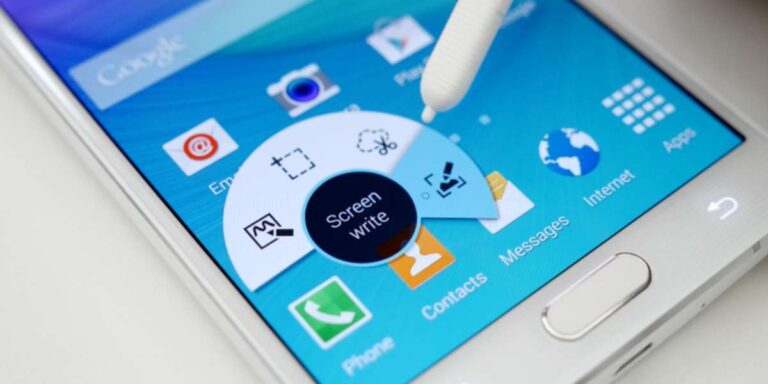
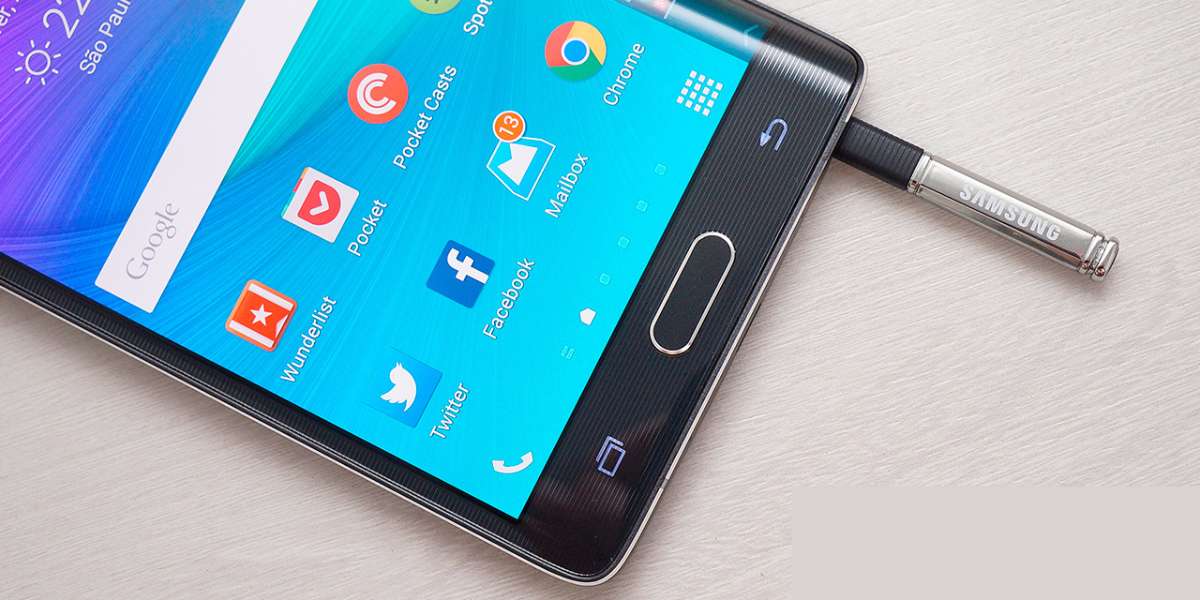
In today’s interconnected world, it’s essential to have seamless communication between devices. If you own a Samsung Galaxy Note 5 and a Mac computer, you may wonder how to connect the two and transfer files effortlessly. In this article, we will guide you through the process of connecting your Galaxy Note 5 to a Mac, ensuring a smooth data transfer experience. Let’s dive in!

1. Check System Requirements

Before attempting to connect your Galaxy Note 5 to your Mac, ensure that you meet the necessary system requirements. The minimum requirement for connecting these devices is having a Mac computer running OS X 10.5 or later versions. Additionally, ensure that your Galaxy Note 5 is running on Android 5.0 Lollipop or a newer version.

2. Use USB Cable

The most straightforward method to connect your Galaxy Note 5 to a Mac is by using a USB cable. Start by connecting one end of the USB cable to your Mac’s USB port and the other end to the charging port of your Galaxy Note 5. Once connected, your Mac should detect the device automatically.

Use USB Cable
Use USB Cable

3. Enable USB Debugging

To establish a successful connection, you may need to enable USB debugging on your Galaxy Note 5. First, go to the “Settings” app on your device and scroll down to find the “About phone” section. Tap on it and locate the “Build number.” Tap the “Build number” seven times to enable Developer options.

Now, go back to the main “Settings” menu and select “Developer options.” Look for “USB debugging” and toggle the switch to enable it. This allows your Mac to communicate with your Galaxy Note 5 properly.

How to get Battlefield 3 on Mac?

4. File Transfer Protocol (FTP)

If you prefer wireless file transfer, you can use the File Transfer Protocol (FTP) method. Start by downloading an FTP server app from the Google Play Store on your Galaxy Note 5. Some popular options include “AndFTP,” “Solid Explorer,” or “Turbo FTP Client.”

Install and launch the chosen FTP server app on your device. Follow the instructions provided to set up an FTP server. Once the server is running, you will receive an FTP address, username, and password.

On your Mac, open the “Finder” application, click on the “Go” menu, and select “Connect to Server.” Enter the FTP address provided by the server app on your Galaxy Note 5 and click “Connect.” When prompted, enter the username and password.

Upon successful connection, you can transfer files between your Galaxy Note 5 and Mac by dragging and dropping them into the appropriate folders.

5. Android File Transfer

Another convenient method to connect your Galaxy Note 5 to a Mac is by using the Android File Transfer application. Start by downloading and installing the Android File Transfer app on your Mac from the official website (www.android.com/filetransfer).

Once installed, connect your Galaxy Note 5 to your Mac using a USB cable. Open the Android File Transfer app on your Mac, and you should see a window displaying the contents of your Galaxy Note 5’s storage.

You can now browse through your device’s folders and transfer files by simply dragging and dropping them onto your Mac or vice versa. Remember to safely eject your device from the Mac before disconnecting the USB cable.

6. Samsung Smart Switch

If you want to transfer files, contacts, and other data from your Galaxy Note 5 to your Mac, Samsung Smart Switch provides a comprehensive solution. Start by downloading and installing the Samsung Smart Switch app on your Mac from the Samsung website.

Why is My Mac Fans so Loud?

Once installed, launch the application and connect your Galaxy Note 5 to your Mac using a USB cable. On your device, follow the on-screen instructions to authorize the connection and enable file transfer.

After establishing the connection and authorizing the transfer, Samsung Smart Switch will display a user-friendly interface on your Mac. You can select the types of data you want to transfer, such as contacts, messages, photos, videos, and more.

Once you have chosen the data to transfer, click on the “Transfer” button, and Samsung Smart Switch will initiate the process. The app will handle the transfer seamlessly, ensuring that your files and data are safely migrated from your Galaxy Note 5 to your Mac.

7. Cloud Storage Services

If you prefer a cloud-based approach for file transfer and synchronization, utilizing cloud storage services is an excellent option. Services like Google Drive, Dropbox, or OneDrive offer convenient ways to access and transfer files between your Galaxy Note 5 and Mac.

Start by installing the respective cloud storage app on both devices. Sign in to your accounts and ensure that the files you want to transfer are uploaded to the cloud storage service. Once the files are uploaded, you can access them from either device and download or upload new files as needed.

Cloud storage services provide a seamless and accessible method for transferring files between your Galaxy Note 5 and Mac, regardless of your physical location.

8. Bluetooth Connectivity

While Bluetooth connectivity is not the fastest method for file transfer, it can still be useful for smaller files or when you don’t have a USB cable available. Both your Galaxy Note 5 and Mac come equipped with Bluetooth capabilities.

On your Galaxy Note 5, navigate to the “Settings” app, select “Bluetooth,” and toggle the switch to enable it. On your Mac, open the Bluetooth settings from the menu bar or the System Preferences. Ensure that Bluetooth is turned on and set to discoverable mode.

Once both devices have Bluetooth enabled, they will search for each other. On your Galaxy Note 5, select your Mac’s name from the list of available devices to establish a connection. Follow any on-screen prompts to complete the pairing process.

Once connected, you can use the Bluetooth File Exchange application on your Mac to send and receive files from your Galaxy Note 5. Keep in mind that the transfer speed may be slower compared to other methods, and Bluetooth has limitations in terms of file size and transfer speed.

In conclusion, connecting your Galaxy Note 5 to a Mac is a straightforward process that allows you to transfer files, synchronize data, and enjoy seamless communication between the devices. Whether you prefer using a USB cable, FTP, Android File Transfer, Samsung Smart Switch, cloud storage services, or Bluetooth, there are various methods available to suit your preferences.

By following the steps outlined in this article, you can establish a reliable connection and effortlessly transfer files between your Galaxy Note 5 and Mac, ensuring that your data is easily accessible across devices. Embrace the convenience of a connected ecosystem and enjoy a seamless experience between your Galaxy Note 5 and Mac computer.

How to get Battlefield 3 on Mac?

0

Battlefield 3 is a popular first-person shooter video game developed by DICE and published by Electronic Arts. Originally released in 2011, it quickly gained a massive following and became a staple in the gaming community. While Battlefield 3 was primarily designed for Windows, many Mac users are eager to experience the intense action and immersive gameplay. In this article, we will explore various methods to get Battlefield 3 on your Mac and enjoy this thrilling game.

Method 1: Using Boot Camp

Boot Camp is a built-in utility on Mac computers that allows you to install and run Windows on your Mac alongside macOS. By using Boot Camp, you can create a separate partition on your hard drive dedicated to Windows and install Battlefield 3 as you would on a Windows PC. Here are the steps to get Battlefield 3 on your Mac using Boot Camp:

  1. Check System Requirements: Ensure that your Mac meets the system requirements for running Battlefield 3. This includes having a compatible Mac model, sufficient RAM, and available storage space.
  2. Backup Your Data: Before proceeding with Boot Camp installation, it is essential to back up all your important files and data to prevent any loss during the partitioning process.
  3. Download Windows ISO: Visit the official Microsoft website and download the Windows ISO file corresponding to the version you want to install. Make sure to select the appropriate architecture (32-bit or 64-bit) based on your Mac’s capabilities.
  4. Open Boot Camp Assistant: Go to the “Applications” folder, then open the “Utilities” folder, and locate “Boot Camp Assistant.” Launch the application to begin the installation process.
  5. Partition Your Hard Drive: Boot Camp Assistant will guide you through the process of partitioning your hard drive. Allocate enough space for Windows, keeping in mind the requirements of Battlefield 3.
  6. Install Windows: After partitioning, you will be prompted to insert a USB drive to create a Windows installer. Follow the on-screen instructions to install Windows on your Mac.
  7. Install Battlefield 3: Once Windows is installed, launch the Windows partition and download and install Battlefield 3 as you would on a regular Windows PC. Ensure you have a valid Battlefield 3 license or purchase the game if necessary.
Method 1: Using Boot Camp

Method 2: Using Virtualization Software

If you prefer not to use Boot Camp or don’t want to partition your hard drive, you can use virtualization software to run Windows within macOS. Virtualization software creates a virtual machine (VM) on your Mac, allowing you to install and run Windows and its applications. Here’s how to get Battlefield 3 on your Mac using virtualization software:

  1. Choose Virtualization Software: Select a virtualization software such as Parallels Desktop, VMware Fusion, or VirtualBox. Research and compare their features and compatibility with your Mac.
  2. Install Virtualization Software: Download and install the chosen virtualization software on your Mac following the provided instructions.
  3. Create a Windows Virtual Machine: Launch the virtualization software and create a new Windows virtual machine. Follow the on-screen instructions to set up the VM, including allocating RAM, storage space, and selecting the Windows ISO file.
  4. Install Windows: Start the virtual machine and proceed with the Windows installation process within the VM. Enter your Windows product key when prompted.
  5. Install Battlefield 3: Once Windows is installed within the virtual machine, launch your web browser and download Battlefield 3. Install the game as you would on a regular Windows PC, ensuring you have a valid Battlefield 3 license or purchasing the game if necessary.

Method 3: Cloud Gaming Platforms

Cloud gaming platforms offer an alternative way to play Battlefield 3 on your Mac without the need for extensive hardware requirements or installations. These platforms allow you to stream and play games directly from remote servers. Here’s how you can use cloud gaming platforms to get Battlefield 3 on your Mac:

Why is My Mac Fans so Loud?

  1. Choose a Cloud Gaming Service: Research and select a cloud gaming service that offers Battlefield 3 in its game library. Some popular options include GeForce Now, Google Stadia, and Shadow.
  2. Sign Up and Subscribe: Create an account on the chosen cloud gaming platform and subscribe to their service. Depending on the platform, there may be a free tier or various subscription plans available.
  3. Install the App or Access the Web Client: Download and install the cloud gaming platform’s application on your Mac, or access their web client through your preferred web browser.
  4. Connect to the Service: Launch the application or access the web client and sign in to your account. Follow any additional instructions provided by the platform to connect to their servers.
  5. Search and Launch Battlefield 3: Once you’re connected to the cloud gaming service, search for Battlefield 3 in their game library. Select the game and launch it, which will initiate the streaming process.
  6. Enjoy Battlefield 3: With the game streaming to your Mac, you can now enjoy Battlefield 3 without the need for installation or demanding hardware requirements. Play the game using a compatible controller or the platform’s provided controls.

Conclusion

Although Battlefield 3 was primarily designed for Windows, Mac users can still experience the thrill of this popular first-person shooter game through different methods. By using Boot Camp, you can create a Windows partition on your Mac and install the game directly. Virtualization software allows you to run Windows within macOS and enjoy Battlefield 3 without partitioning your hard drive. Alternatively, cloud gaming platforms provide a convenient way to stream and play the game on your Mac without extensive installations. Whichever method you choose, make sure to check the system requirements and have a valid Battlefield 3 license to ensure a smooth gaming experience. Get ready to immerse yourself in intense battles and tactical warfare on your Mac with Battlefield 3.

Why is My Mac Fans so Loud?

0

Mac computers are known for their sleek design and quiet operation. However, there may be times when you notice that your Mac’s fan is running at a high speed, resulting in a loud and noticeable noise. This can be concerning and might indicate an underlying issue with your Mac. In this article, we will explore the reasons why your Mac fan may be so loud and provide you with effective solutions to address the problem.

1. Introduction to Mac Fans

Before we delve into the possible causes of a loud Mac fan, it’s important to understand the role of fans in a Mac computer. Macs are equipped with one or more fans that are designed to regulate the internal temperature of the system by expelling hot air and bringing in cool air. The fans adjust their speed based on the temperature readings provided by various sensors within the Mac.

2. Normal Fan Operation

Under normal circumstances, Mac fans operate quietly and efficiently, adapting their speed as necessary to maintain optimal temperatures. However, there are situations when the fans may run at a higher speed, resulting in increased noise levels. Let’s explore some of the common reasons for loud Mac fans.

3. High CPU Usage

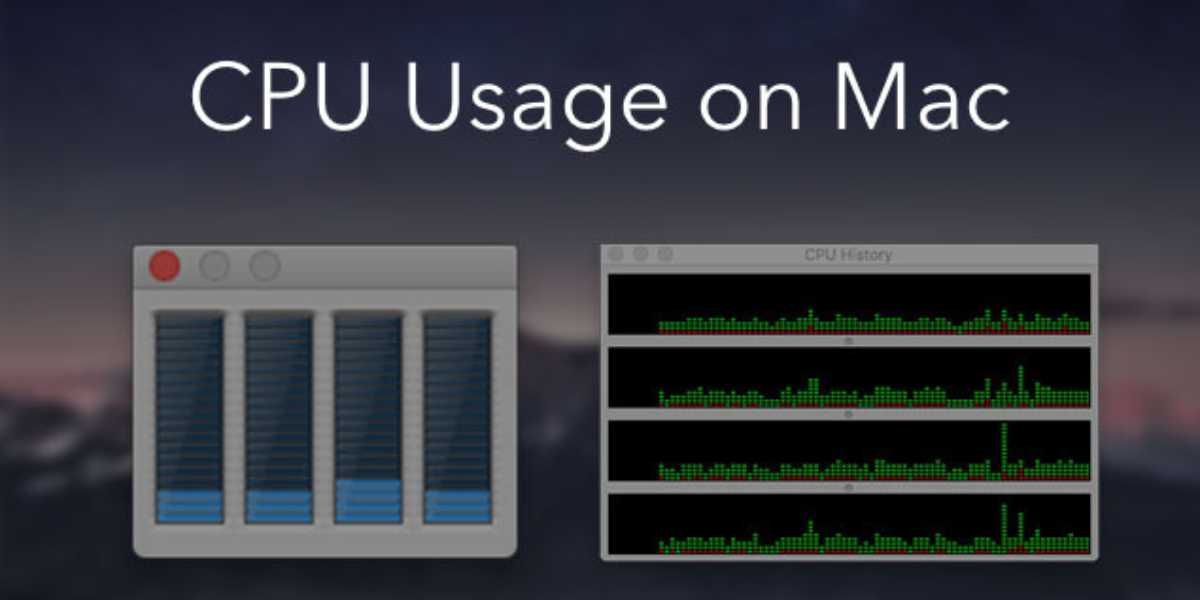
One of the primary reasons for a loud Mac fan is high CPU usage. When your Mac’s processor is working harder than usual, generating more heat, the fans respond by spinning faster to cool down the system. High CPU usage can be caused by resource-intensive tasks such as running demanding applications, performing complex calculations, or running multiple applications simultaneously.

High CPU Usage
High CPU Usage

4. Insufficient Airflow

If your Mac is placed in an environment with limited airflow or is obstructed by objects like papers, books, or clothing, it can lead to inadequate cooling. Insufficient airflow can cause the internal components to heat up, prompting the fans to run at higher speeds to compensate. Ensure that your Mac has sufficient space around it and that the vents are not blocked.

5. Dust Accumulation

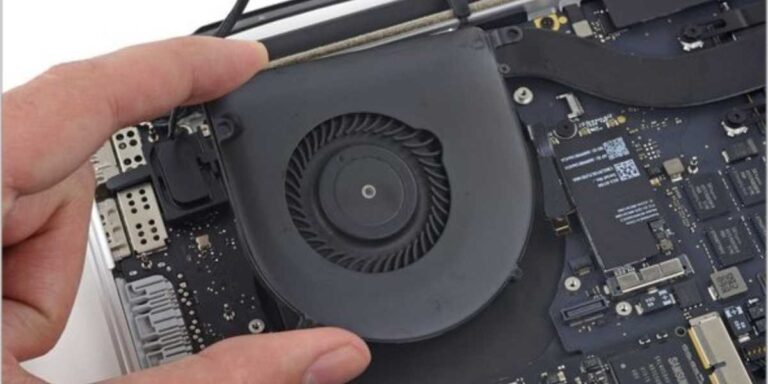
Over time, dust can accumulate inside your Mac, particularly on the fan blades and heat sinks. This buildup restricts airflow and hampers the cooling efficiency, leading to louder fan operation. Regular cleaning of your Mac’s internal components, including the fans, can help alleviate this issue.

6. Background Processes and Applications

Certain background processes and applications running on your Mac may consume excessive system resources, causing the fans to spin faster. Examples include antivirus scans, software updates, file indexing, and cloud syncing. Identifying and optimizing these processes can help reduce fan noise.

How to get more Storage on Mac?

7. Outdated macOS

An outdated or incompatible version of macOS can lead to inefficient fan control and louder fan operation. It’s essential to keep your Mac’s operating system up to date to benefit from performance improvements, bug fixes, and optimized fan control algorithms.

8. Faulty Fan or Temperature Sensors

In some cases, a loud Mac fan could be an indication of a hardware issue. A malfunctioning fan or faulty temperature sensors may cause the fans to operate at maximum speed consistently, even when the system is not experiencing high temperatures. If you suspect a hardware problem, it’s recommended to consult an authorized service provider for assistance.

9. Managing Loud Mac Fans

Now that we have explored the possible reasons for a loud Mac fan, let’s discuss some effective solutions to address the issue:

  • Monitor CPU usage: Use the Activity Monitor utility to identify resource-intensive processes or applications that may be causing high CPU usage. Quit or disable unnecessary tasks to reduce the workload on your Mac’s processor.
  • Check for software updates: Keep your macOS and applications up to date to ensure compatibility, bug fixes, and optimized performance, including fan control.
  • Clean your Mac: Regularly clean the internal components of your Mac, including the fans, using compressed air or a soft brush to remove dust and debris. This helps improve airflow and reduces the strain on the fans.
  • Adjust power settings: Modify the energy-saving settings on your Mac to strike a balance between performance and fan noise. Lowering the processor performance or enabling power-saving modes can help reduce heat generation and fan activity.
  • Close resource-intensive applications: If you notice that certain applications are consistently causing high CPU usage and loud fan noise, consider closing them when not in use or finding alternative, less resource-intensive options.
  • Manage background processes: Review and optimize background processes and tasks that may be consuming excessive system resources. Disable unnecessary startup items, limit background applications, and adjust settings to minimize their impact on CPU usage.
  • Reset System Management Controller (SMC): The SMC is responsible for managing various hardware functions on your Mac, including fan control. Resetting the SMC can help resolve issues related to fan operation. The process for resetting the SMC varies depending on your Mac model, so refer to Apple’s official documentation for instructions.
  • Seek professional assistance: If none of the above solutions alleviate the loud fan noise, it may be necessary to seek professional help. Contact an authorized Apple service provider or visit an Apple Store for further diagnosis and repair.

By following these steps and implementing the appropriate solutions, you can effectively address the issue of a loud Mac fan. However, if the problem persists or you suspect a hardware malfunction, it is advisable to consult with a professional technician to ensure the optimal functioning of your Mac.

How to Clean Up Mac?

Conclusion

A loud Mac fan can be a source of annoyance and may indicate an underlying issue with your computer. By understanding the common causes of loud fan noise, such as high CPU usage, insufficient airflow, dust accumulation, background processes, outdated macOS, or faulty hardware, you can take appropriate steps to resolve the problem. Monitoring CPU usage, keeping your software up to date, cleaning your Mac regularly, managing background processes, adjusting power settings, and resetting the SMC are effective measures to mitigate loud fan noise. Remember, if the issue persists or you suspect a hardware problem, it is best to seek professional assistance to ensure the proper functioning of your Mac and maintain a quiet and efficient computing experience.

How to get more Storage on Mac?

0

Running out of storage space on your Mac can be frustrating, especially when you need to store important files or install new applications. However, there are several effective strategies you can employ to free up space and optimize storage on your Mac. In this article, we will provide you with a comprehensive guide on how to get more storage on your Mac, allowing you to make the most of your device.

1. Assessing Your Storage Space

Before diving into the process of increasing storage on your Mac, it’s important to assess your current storage situation. Follow these steps:

  • Click on the Apple menu in the top-left corner of your screen and select “About This Mac.”
  • In the pop-up window, click on the “Storage” tab to view an overview of your Mac’s storage usage.
  • Analyze the storage categories, such as Applications, Documents, and System, to identify areas that are consuming the most space.

Understanding how your storage is being utilized will help you prioritize your efforts and focus on the areas that require immediate attention.

2. Delete Unnecessary Files and Applications

One of the first steps to getting more storage on your Mac is to remove unnecessary files and applications. Here’s what you can do:

  • Go through your Documents, Downloads, and Desktop folders. Delete any files you no longer need, such as old documents, duplicates, or large media files.
  • Empty the Trash by right-clicking on the Trash icon in the Dock and selecting “Empty Trash.” This permanently deletes the files, freeing up storage space.
  • Uninstall unused applications by dragging them from the Applications folder to the Trash. Alternatively, you can use a dedicated uninstaller tool or third-party application, like AppCleaner, to ensure all associated files are removed.

By deleting unnecessary files and applications, you can quickly reclaim valuable storage space.

3. Optimize Storage with iCloud

If you have limited local storage on your Mac, utilizing iCloud storage can help offload files and free up space. Here’s how to optimize storage with iCloud:

Optimize Storage with iCloud
  • Go to the Apple menu and select “System Preferences.”
  • Click on “Apple ID” and then select “iCloud.”
  • Enable the options to store files in iCloud Drive, optimize storage, and enable iCloud Photos.

By storing files in iCloud Drive, you can access them across devices and free up local storage space on your Mac.

How to Clean Up Mac?

4. Use External Storage Devices

If you need additional storage space for your Mac, consider using external storage devices such as external hard drives or solid-state drives (SSDs). Follow these steps to utilize external storage:

  • Purchase an external storage device that suits your needs and is compatible with your Mac.
  • Connect the external storage device to your Mac using the appropriate cable (USB, Thunderbolt, etc.).
  • Once connected, you can transfer files and folders from your Mac to the external storage device to free up space.

External storage devices provide a convenient and portable solution for expanding your Mac’s storage capacity.

5. Utilize Cloud Storage Services

Cloud storage services offer a practical way to store files and free up space on your Mac. Here’s how to use cloud storage:

  • Sign up for a cloud storage service such as Dropbox, Google Drive, or OneDrive.
  • Install the corresponding application on your Mac and set up your account.
  • Drag and drop files or folders from your Mac to the cloud storage folder or use the sync feature to automatically upload files to the cloud.

By storing files in the cloud, you can access them from any device with an internet connection and reduce the amount of local storage used on your Mac.

6. Clearing Cache and Temporary Files

Cache and temporary files can accumulate over time and take up significant storage space on your Mac. Follow these steps to clear them and reclaim storage space:

  • Open Finder and click on the “Go” menu in the menu bar. Press and hold the Option key, and the Library folder will appear in the drop-down menu. Select “Library.”
  • Within the Library folder, locate and open the “Caches” directory.
  • Select all the files and folders within the Caches folder and move them to the Trash.
  • Empty the Trash to permanently delete the cache files.

Clearing cache and temporary files not only frees up storage space but can also improve the performance of certain applications.

Why Is My Mac Not Connecting to Wi-Fi?

7. Enable Optimized Storage

MacOS offers a feature called Optimized Storage, which automatically manages your storage space by keeping frequently accessed files on your Mac while storing older and infrequently accessed files in iCloud. Here’s how to enable Optimized Storage:

  • Go to the Apple menu and select “System Preferences.”
  • Click on “Apple ID” and then select “iCloud.”
  • Click on “Manage” next to “iCloud Storage.”
  • In the sidebar, select “Optimize…” under the “Recommendations” section.

Enabling Optimized Storage allows you to maximize your available storage space by intelligently managing your files.

8. Clearing Email Attachments and Downloads

Email attachments and downloads can accumulate over time and consume storage space. To clear them:

  • Open the Mail application on your Mac.
  • In the menu bar, click on “Mail” and select “Preferences.”
  • Navigate to the “General” tab and click on “Manage Attachments.”
  • Review the attachments and delete the ones you no longer need.

Similarly, go to the Downloads folder and delete any downloaded files that are no longer required.

9. Utilize Storage Management Tools

MacOS provides built-in storage management tools that can help you identify and remove large or unnecessary files. Here’s how to use them:

  • Go to the Apple menu and select “About This Mac.”
  • In the pop-up window, click on the “Storage” tab.
  • Click on the “Manage” button to access storage management options.

From here, you can review recommendations, remove large files, delete unwanted documents, and more.

10. Regularly Update macOS

Keeping your macOS up to date is crucial for optimizing storage and performance. Apple frequently releases updates that include performance improvements and bug fixes. To update macOS:

  • Go to the Apple menu and select “System Preferences.”
  • Click on “Software Update” to check for available updates.
  • If updates are available, click on “Update Now” to install them.

By regularly updating macOS, you ensure that your Mac benefits from the latest optimizations and enhancements.

Conclusion

With the comprehensive guide provided above, you now have various strategies at your disposal to get more storage on your Mac. By deleting unnecessary files, utilizing cloud storage services, clearing cache and temporary files, using external storage devices, and optimizing storage with iCloud, you can effectively maximize your available storage space. Remember to regularly assess your storage usage, employ the tips outlined in this guide, and keep your macOS up to date to ensure optimal performance and an organized digital workspace on your Mac.

How to Clean Up Mac?

0

Keeping your Mac clean and organized is crucial for maintaining its optimal performance and ensuring a smooth user experience. Over time, your Mac can accumulate unnecessary files, cluttered folders, and system junk that can impact its speed and responsiveness. In this article, we will provide you with a comprehensive guide on how to clean up your Mac effectively, allowing it to run efficiently and efficiently.

1. Assessing Your Mac’s Storage

Before diving into the cleaning process, it’s essential to assess your Mac’s storage and identify areas that require attention. Follow these steps:

  • Click on the Apple menu in the top-left corner of the screen and select “About This Mac.”
  • In the pop-up window, click on the “Storage” tab to view an overview of your Mac’s storage usage.
  • Analyze the storage categories, such as Applications, Documents, and System, to identify the areas consuming the most space.

Understanding your Mac’s storage distribution will help you prioritize the cleaning tasks and focus on the areas that require immediate attention.

2. Deleting Unnecessary Files and Applications

One of the primary steps in cleaning up your Mac is removing unnecessary files and applications. Here’s how to do it:

  • Go through your Documents, Downloads, and Desktop folders. Delete any files you no longer need, such as old documents, duplicates, or large media files.
  • Empty the Trash by right-clicking on the Trash icon in the Dock and selecting “Empty Trash.” This permanently deletes the files, freeing up storage space.
  • Uninstall unused applications by dragging them from the Applications folder to the Trash. Alternatively, you can use a dedicated uninstaller tool or third-party application, like AppCleaner, to ensure all associated files are removed.

3. Organizing and Decluttering Your Desktop

A cluttered desktop can slow down your Mac’s performance. Here are some steps to keep your desktop organized:

  • Move files and folders to appropriate locations within your Documents folder or create new folders to categorize them.
  • Utilize the Stacks feature to automatically organize files on your desktop based on type or date. Right-click on the desktop and select “Use Stacks” to enable this feature.

By decluttering your desktop, you can improve your Mac’s speed and reduce visual distractions.

Why Is My Mac Not Connecting to Wi-Fi?

4. Clearing Cache and Temporary Files

Cache and temporary files can accumulate over time and take up significant storage space. Here’s how to clear them:

Clearing Cache and Temporary Files
  • Open Finder and click on the “Go” menu in the menu bar. Press and hold the Option key, and the Library folder will appear in the drop-down menu. Select “Library.”
  • Within the Library folder, locate and open the “Caches” directory.
  • Select all the files and folders within the Caches folder and move them to the Trash.
  • Empty the Trash to permanently delete the cache files.

Clearing cache files can free up storage space and potentially improve the performance of certain applications.

5. Managing Startup Items

When your Mac starts up, various applications and processes may automatically launch, slowing down the boot time. Managing startup items can help streamline the process. Follow these steps:

  • Go to “System Preferences” from the Apple menu and click on “Users & Groups” or “Users & Accounts.”
  • Select your user account and navigate to the “Login Items” tab.
  • Review the list of applications and uncheck the ones you don’t need to launch at startup.

By reducing the number of startup items, you can significantly improve your Mac’s boot time and overall performance.

6. Running Disk Utility

Disk Utility is a built-in tool on your Mac that helps maintain and repair your storage drive. Here’s how to use it:

  • Open Spotlight by clicking on the magnifying glass icon in the menu bar and type “Disk Utility.” Select the Disk Utility application from the search results.
  • In the Disk Utility window, select your main hard drive or SSD from the list on the left.
  • Click on the “First Aid” button at the top of the window and then select “Run” to initiate the disk verification and repair process.
  • Allow the process to complete. Disk Utility will scan and fix any errors on your storage drive.

Running Disk Utility regularly helps ensure the integrity of your disk and can improve your Mac’s overall performance.

7. Removing Unused Language Files

Many applications come with language files for different languages, even if you only use one or two. Removing unused language files can free up a significant amount of storage space. Here’s how to do it:

  • Download and install a cleaning tool like Monolingual or CleanMyMac, which can scan for and remove unnecessary language files.
  • Launch the cleaning tool and select the option to scan for language files.
  • Review the scan results and choose to remove the language files you don’t need.

Removing unused language files can reclaim storage space and streamline your Mac’s resources.

8. Optimizing Storage with iCloud

If you have limited local storage on your Mac, utilizing iCloud storage can help offload files and free up space. Follow these steps:

  • Go to the Apple menu and select “System Preferences.”
  • Click on “Apple ID” and then select “iCloud.”
  • Enable the options to store files in iCloud Drive, optimize storage, and enable iCloud Photos.

By leveraging iCloud storage, you can keep your Mac’s local storage clean and efficiently manage your files across devices.

How to Play Fortnite on Mac?

9. Regular Software Updates

Keeping your Mac’s software up to date is essential for its performance and security. Regularly check for and install software updates, including macOS updates and updates for installed applications. To update macOS, follow these steps:

  • Go to the Apple menu and select “System Preferences.”
  • Click on “Software Update” to check for available updates.
  • If updates are available, click on “Update Now” to install them.

By staying up to date, you ensure that your Mac benefits from the latest performance enhancements and security patches.

10. Backing Up Your Mac

Before making any significant changes or cleaning up your Mac, it’s crucial to back up your data. This ensures that you have a copy of your important files in case of any unforeseen issues. You can back up your Mac using Time Machine or a cloud-based backup service like iCloud or third-party solutions.

Conclusion

Regularly cleaning up your Mac is essential for maintaining its performance and ensuring a clutter-free and organized digital workspace. By following the steps outlined in this comprehensive guide, you can effectively clean up your Mac, free up storage space, optimize performance, and enjoy a smoother user experience. Remember to assess your storage, delete unnecessary files and applications, clear cache and temporary files, manage startup items, run Disk Utility, remove unused language files, optimize storage with iCloud, keep software up to date, and back up your Mac regularly. By implementing these practices, you’ll keep your Mac running efficiently and enjoy its full potential.

Why Is My Mac Not Connecting to Wi-Fi?

0

In today’s interconnected world, a stable and reliable Wi-Fi connection is crucial for Mac users to stay connected and productive. However, there may be instances when your Mac refuses to connect to Wi-Fi networks, leaving you frustrated and disconnected. In this article, we will explore the common reasons why your Mac may not be connecting to Wi-Fi and provide troubleshooting steps to help you resolve the issue.

1. Signal Interference

One of the primary reasons for a Mac’s Wi-Fi connectivity issues is signal interference. Various devices and objects, such as other wireless devices, walls, and even appliances, can interfere with your Wi-Fi signal, leading to a weak or unstable connection. Here’s what you can do to mitigate signal interference:

  • Position your Mac closer to the Wi-Fi router: This helps to minimize the distance between your Mac and the router, improving signal strength.
  • Reduce interference from other devices: Move other wireless devices away from your Mac, as their signals can interfere with the Wi-Fi connection. Additionally, avoid placing your Mac near large metal objects or walls that can block the Wi-Fi signal.

2. Network Settings

Misconfigured network settings can prevent your Mac from connecting to Wi-Fi networks. Here are a few troubleshooting steps you can take:

  • Reset network settings: Go to “System Preferences” on your Mac, click on “Network,” and then select the Wi-Fi connection. Click on the minus (-) button to remove the network. Restart your Mac and add the network again to reset the network settings.
  • Check for IP conflicts: In rare cases, IP conflicts can occur if multiple devices on the same network have the same IP address. To resolve this, assign a static IP address to your Mac or configure your router to use dynamic IP addresses.

3. Wi-Fi Router Issues

The problem may lie with your Wi-Fi router itself. Consider the following troubleshooting steps:

  • Restart your router: Unplug your router from the power source, wait for a few seconds, and then plug it back in. This simple step can resolve temporary glitches and connectivity issues.
  • Update router firmware: Visit the manufacturer’s website to check for any firmware updates for your router. Updating the firmware can provide bug fixes and improve overall performance and compatibility.
Wi-Fi Router Issues
Wi-Fi Router Issues
  • Modify router settings: Log in to your router’s administration panel and ensure that the Wi-Fi settings, such as the network name (SSID) and security settings, are correctly configured. Consult your router’s user manual or contact the manufacturer for specific instructions.

4. Wi-Fi Network Authentication

If you’re unable to connect to a specific Wi-Fi network, it might be due to authentication issues. Here’s what you can try:

  • Verify network credentials: Double-check the network name (SSID) and password you’re using to connect to the Wi-Fi network. Ensure that they are entered correctly, paying attention to uppercase and lowercase letters.
  • Forget and reconnect to the network: In the Wi-Fi settings on your Mac, select the network causing issues, and click on the minus (-) button to remove it from the known networks list. Then, reconnect to the network by selecting it from the list and entering the correct password.

How to Play Fortnite on Mac?

5. Outdated Software

Outdated software on your Mac, including the operating system and Wi-Fi drivers, can contribute to connectivity problems. Here’s what you can do:

  • Update macOS: Ensure that your Mac is running the latest version of macOS. Open the App Store, go to the “Updates” tab, and install any available updates.
  • Update Wi-Fi drivers: Visit the Apple support website or the website of your Mac’s manufacturer to check for updated Wi-Fi drivers. Download and install the latest drivers to ensure optimal compatibility and performance.

6. Hardware Issues

In rare cases, hardware issues can be the cause of your Mac’s Wi-Fi connectivity problems. Here are a few steps to troubleshoot potential hardware issues:

the cause of your Mac’s Wi-Fi connectivity problems. Here are a few steps to troubleshoot potential hardware issues:

  • Check Wi-Fi hardware: Ensure that the Wi-Fi hardware on your Mac is functioning properly. You can do this by going to “System Information” on your Mac, selecting “Wi-Fi” from the sidebar, and checking if the Wi-Fi hardware is detected and functioning without any errors.
  • Reset the System Management Controller (SMC): The SMC is responsible for managing various hardware components on your Mac, including the Wi-Fi module. Resetting the SMC can help resolve hardware-related issues. The process to reset the SMC varies depending on your Mac model. Refer to Apple’s support documentation or contact Apple Support for instructions specific to your Mac.
  • Consider professional assistance: If you’ve tried all the troubleshooting steps mentioned above and your Mac still doesn’t connect to Wi-Fi, it might be time to seek professional assistance. Contact Apple Support or visit an authorized service center to diagnose and repair any potential hardware issues.

7. Firewall or Security Software

Sometimes, your Mac’s firewall or third-party security software can interfere with Wi-Fi connections. Here’s what you can do:

  • Disable firewall temporarily: Go to “System Preferences” on your Mac, click on “Security & Privacy,” and navigate to the “Firewall” tab. Disable the firewall temporarily and check if you can connect to the Wi-Fi network. If the issue is resolved, consider adjusting your firewall settings or adding exceptions for the necessary network ports.
  • Check security software settings: If you have third-party security software installed on your Mac, check its settings to ensure that it is not blocking or interfering with Wi-Fi connections. Temporarily disable the security software and check if the issue persists. If disabling the software resolves the problem, consult the software’s documentation or contact their support for further assistance.

How to Connect Xbox Controller to Mac?

8. Seek Professional Assistance

If you have exhausted all the troubleshooting steps and your Mac still refuses to connect to Wi-Fi, it may be necessary to seek professional assistance. Apple Support or an authorized Apple service center can provide expert guidance and diagnose any underlying issues with your Mac’s hardware or software.

In conclusion, Wi-Fi connectivity issues on your Mac can be caused by various factors, including signal interference, network settings, router issues, authentication problems, outdated software, hardware issues, and firewall or security software conflicts. By following the troubleshooting steps outlined above, you can diagnose and resolve most common Wi-Fi connectivity problems on your Mac. Remember to keep your software and hardware up to date, and don’t hesitate to seek professional help when needed. Stay connected and enjoy a seamless Wi-Fi experience on your Mac!