




Home Blog Page 5

How to Play Fortnite on Mac?

0

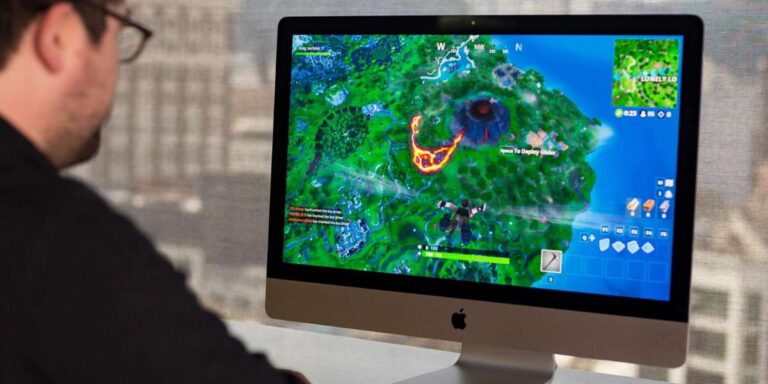
Fortnite is one of the most popular video games of our time, captivating millions of players worldwide with its intense battles and unique gameplay. While it was originally released for Windows, PlayStation, Xbox, and other gaming platforms, it’s also possible to play Fortnite on a Mac. In this article, we will guide you through the process of playing Fortnite on a Mac, so you can join in on the action and experience the excitement yourself.

Requirements for Playing Fortnite on Mac

Before diving into the steps, it’s important to ensure that your Mac meets the minimum requirements to run Fortnite smoothly. Here are the basic specifications you’ll need:
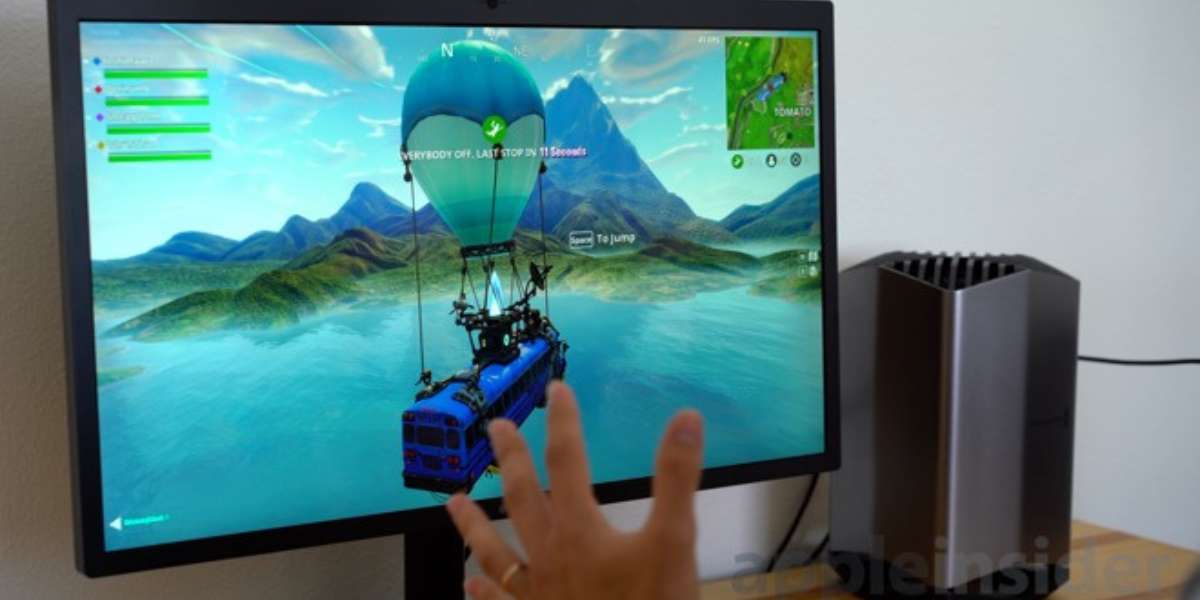
Requirements for Playing Fortnite on Mac
  1. Operating System: macOS Sierra (10.12.6) or later
  2. Processor: Intel Core i3 2.4 GHz
  3. Memory: 4 GB RAM
  4. Graphics: Intel HD 4000
  5. Storage: At least 15 GB of free space

If your Mac meets these requirements, you’re ready to proceed with the installation and setup process.

Step 1: Downloading Fortnite

To play Fortnite on your Mac, you’ll need to download the game. Follow these steps to get started:

  1. Visit the official Fortnite website (https://www.epicgames.com/fortnite) in your web browser.
  2. Click on the “Play Free Now” button on the homepage.
  3. You’ll be redirected to the Epic Games website. Click on the “Get Epic Games” button.
  4. Once the Epic Games Launcher is downloaded, open the installer file and follow the on-screen instructions to complete the installation process.

Step 2: Creating an Epic Games Account

To play Fortnite, you’ll need to create an Epic Games account. Here’s how you can do it:

  1. Open the Epic Games Launcher on your Mac.
  2. Click on the “Sign Up” button.
  3. Fill in the required information, including your email address and a secure password.
  4. Read and accept the terms of service and privacy policy.
  5. Click on the “Create Account” button to finish the registration process.

Step 3: Installing Fortnite

Once you have an Epic Games account, you can proceed with the installation of Fortnite:

  1. Open the Epic Games Launcher.
  2. Sign in with your newly created Epic Games account.
  3. In the Epic Games Launcher, click on the “Store” tab.
  4. Search for “Fortnite” in the search bar.
  5. Click on the Fortnite icon and then click on the “Install” button.
  6. Choose the location where you want to install Fortnite on your Mac.
  7. Wait for the installation process to complete. This may take some time, as the game is large.

Step 4: Launching Fortnite

After the installation is finished, you can launch Fortnite and start playing:

  1. Open the Epic Games Launcher.
  2. Sign in with your Epic Games account if you’re not already signed in.
  3. In the Epic Games Launcher, click on the “Library” tab.
  4. Locate Fortnite in your library and click on the “Launch” button.
  5. The game will launch, and you can now start playing Fortnite on your Mac.

How to Connect Xbox Controller to Mac?

Optimizing Fortnite Performance on Mac

To ensure the best gaming experience, you can follow these additional tips to optimize Fortnite’s performance on your Mac:

  1. Keep your Mac’s software up to date by installing the latest macOS updates.
  2. Close any unnecessary applications and background processes before running Fortnite.
  3. Adjust Fortnite’s graphical settings to find the right balance between performance and visual quality.
  4. Consider connecting your Mac to an Ethernet cable for a more stable internet connection during gameplay.
  5. Regularly check for Fortnite updates and install them to benefit from the latest features, bug fixes, and optimizations.

Troubleshooting Tips

In case you encounter any issues while playing Fortnite on your Mac, here are some troubleshooting tips to help you resolve common problems:

  1. Update Graphics Drivers: Ensure that your Mac’s graphics drivers are up to date. You can usually find the latest drivers on the manufacturer’s website.
  2. Restart your Mac: Sometimes a simple restart can solve performance issues or temporary glitches.
  3. Adjust In-Game Settings: Experiment with different graphics settings within Fortnite to find the optimal balance between performance and visual quality.
  4. Clear Temporary Files: Clearing temporary files and caches on your Mac can free up storage space and improve overall performance. You can use tools like CleanMyMac or Disk Cleanup to help with this.
  5. Check Internet Connection: If you experience lag or connectivity issues, check your internet connection. Try connecting to a different network or restarting your router.
  6. Verify Game Files: In the Epic Games Launcher, you can verify the integrity of game files. This process can help identify and fix any corrupted files that may be causing issues.
  7. Contact Epic Games Support: If you’ve exhausted all troubleshooting options and are still experiencing problems, reach out to Epic Games Support for further assistance. They have a dedicated support team that can help resolve technical issues.

Enjoy Fortnite on Your Mac

With the steps outlined above, you should now be able to play Fortnite on your Mac without any major issues. Remember to keep your Mac’s software and Fortnite game updated to ensure the best experience possible.

How to Screen Record on Mac?

Fortnite offers an exciting and immersive gaming experience with its ever-evolving world, frequent updates, and engaging gameplay. Whether you’re a seasoned player or just starting out, Fortnite on your Mac opens up a world of battles, building, and strategic combat.

Gather your friends, explore the expansive map, and test your skills against players from around the globe. With regular updates, new weapons, and limited-time events, Fortnite on your Mac promises endless hours of thrilling gameplay.

So, don’t let your Mac hold you back from joining the Fortnite community. Follow the steps provided, optimize your settings, and dive into the action-packed world of Fortnite. Get ready to build, fight, and emerge victorious in this popular battle royale game!
How to Add Bluetooth to Mac?

0

If you own a Mac that does not have built-in Bluetooth capability, you can easily add it by following a few simple steps. Adding Bluetooth to your Mac can allow you to connect wireless devices such as headphones, speakers, and mice, without the hassle of cords and cables. In this article, we will guide you through the process of adding Bluetooth to your Mac, including how to check if your Mac already has Bluetooth, how to add a Bluetooth adapter, and how to pair your Bluetooth devices.

Step 1: Check if your Mac already has Bluetooth

The first step in adding Bluetooth is to check if it already has built-in Bluetooth capability. To do this, follow these steps:

Step 1: Check if your Mac already has Bluetooth
  1. Click on the Apple icon in the top-left corner of your screen.
  2. Select About This Mac from the menu.
  3. Click on System Report.
  4. Look for Bluetooth in the left-hand menu. If it is present, your Mac has built-in Bluetooth capability.

If your device does not have Bluetooth capability, you will need to add a Bluetooth adapter.

Step 2: Add a Bluetooth adapter

If your Mac does not have built-in Bluetooth capability, you can add a Bluetooth adapter to enable it. There are two types of Bluetooth adapters you can use: USB and PCIe. Here’s how to add a Bluetooth adapter to your Mac:

  1. Determine the type of adapter you need. If your Mac has an available PCIe slot, you can use a PCIe Bluetooth adapter. If not, you can use a USB Bluetooth adapter.
  2. Purchase a Bluetooth adapter that is compatible and operating system. You can find these adapters online or at your local electronics store.
  3. Turn off your Mac and unplug it from the power source.
  4. Insert the Bluetooth adapter into the PCIe slot or USB port, depending on the type of adapter you purchased.
  5. Turn on your Mac and wait for it to recognize the new hardware.
  6. Install any drivers or software that come with the adapter. This may involve inserting a CD or downloading drivers from the manufacturer’s website.
  7. Once the drivers and software are installed, your Mac should have Bluetooth capability. You can confirm this by checking the System Report.

How to Download YouTube Videos on Mac?

Step 3: Pair your Bluetooth devices

Now that your device has Bluetooth capability, you can pair it with your Bluetooth devices. Here’s how to do it:

  1. Turn on the Bluetooth device you want to pair with, such as a pair of headphones or a speaker.
  2. Click on the Apple icon in the top-left corner of your screen.
  3. Select System Preferences from the menu.
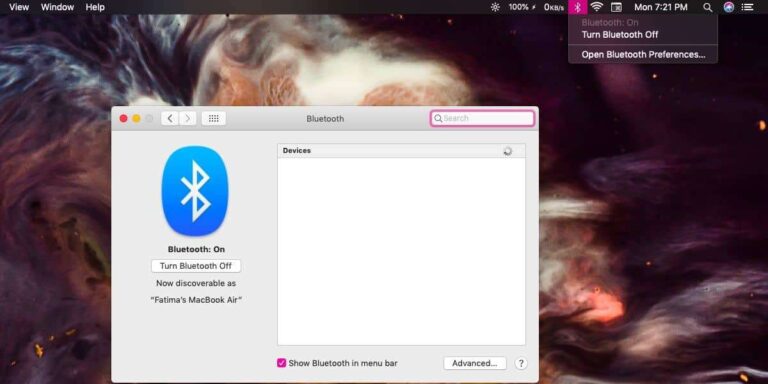
  4. Click on Bluetooth.
  5. Make sure that the toggle switch for Bluetooth is turned on.
  6. Click on the “+” button to add a new device.
  7. Select the type of device you want to add, such as headphones or speakers.
  8. Follow the on-screen instructions to complete the pairing process. This may involve pressing a button on the Bluetooth device or entering a passcode.

Once your device is paired, you should be able to use it wirelessly. Repeat this process for any additional Bluetooth devices you want to connect to your Mac.

In conclusion, adding Bluetooth to your Mac is a simple process that can enhance your computing experience by enabling you to use wireless devices. By following these steps, you can add a Bluetooth adapter to your Mac and pair it with your Bluetooth devices in no time. Whether you want to use wireless headphones, a Bluetooth mouse, or a Bluetooth keyboard, adding Bluetooth to your Mac can provide you with greater flexibility and convenience.

Additional Tips and Troubleshooting

While adding Bluetooth is a straightforward process, there are some additional tips and troubleshooting steps you can take to ensure everything runs smoothly.

  1. Check for software updates: Make sure your Mac’s operating system and Bluetooth drivers are up-to-date. You can check for updates by going to System Preferences > Software Update.
  2. Reset Bluetooth: If you’re having trouble connecting a Bluetooth device to your Mac, you can try resetting Bluetooth. To do this, go to System Preferences > Bluetooth, select the device you’re having trouble with, and click on the “X” button next to it. Then, try pairing the device again.
  3. Keep devices close: Bluetooth has a limited range, so make sure your Bluetooth device is close to your Mac when pairing.
  4. Remove interference: Other wireless devices in the area, such as Wi-Fi routers or microwaves, can interfere with Bluetooth connections. Try turning off other wireless devices to see if that improves your Bluetooth connection.
  5. Use compatible devices: Make sure your Bluetooth devices are compatible with your Mac and operating system. Check the manufacturer’s website for compatibility information.
  6. Try a different USB port: If you’re using a USB Bluetooth adapter, try plugging it into a different USB port on your Mac to see if that improves the connection.
  7. Check hardware connections: If you’re using a PCIe Bluetooth adapter, make sure it is securely installed in your Mac’s PCIe slot.

By following these tips and troubleshooting steps, you can ensure that your Bluetooth connection is stable and reliable. With Bluetooth capability, you can enjoy the convenience and flexibility of wireless devices.

How to Screen Record on Mac?

How to Download YouTube Videos on Mac?

0

YouTube is a treasure trove of videos, from educational tutorials to entertaining content, and everything in between. However, there may be times when you want to download a YouTube video for offline viewing, or to save it for future reference. While YouTube doesn’t offer a direct download option, there are several third-party tools that can help you download YouTube videos on your Mac. In this article, we will guide you through the steps to download YouTube videos on your Mac using different methods.

Method 1: Using a Third-Party App

One of the easiest ways to download YouTube videos on your Mac is by using a third-party app. Here are the steps:

Step 1: Download and Install a YouTube Video Downloader App

There are several YouTube video downloader apps available on the internet, such as 4K Video Downloader, TubeMate, and VideoDuke. Download and install one of these apps on your Mac.

Step 2: Copy the YouTube Video Link

Open the YouTube video that you want to download and copy the video link from the address bar.

Method 1: Using a Third-Party App

Step 3: Paste the Video Link in the App

Open the YouTube video downloader app and paste the video link in the designated field.

Step 4: Select the Video Quality and Format

Choose the video quality and format that you want to download the video in, such as MP4 or AVI.

Step 5: Download the Video

Click on the download button, and the app will start downloading the video.

Method 2: Using a Web Browser Extension

Another easy way to download YouTube videos on your Mac is by using a web browser extension. Here are the steps:

Step 1: Install a Web Browser Extension

Install a web browser extension, such as Video DownloadHelper, on your preferred web browser.

Step 2: Open the YouTube Video

Open the YouTube video that you want to download.

How to Screen Record on Mac?

Step 3: Download the Video

Click on the video download button on the web browser extension, and the video will start downloading.

Method 3: Using Online YouTube Video Downloader Websites

If you don’t want to download any apps or extensions, you can use online YouTube video downloader websites to download YouTube videos on your Mac. Here are the steps:

Step 1: Find an Online YouTube Video Downloader Website

There are several online YouTube video downloader websites available on the internet, such as Y2mate, KeepVid, and SaveFrom.net. Find one that you trust and open it on your web browser.

Step 2: Copy the YouTube Video Link

Open the YouTube video that you want to download and copy the video link from the address bar.

Step 3: Paste the Video Link in the Online Downloader Website

Paste the video link in the designated field on the online YouTube video downloader website.

Step 4: Select the Video Quality and Format

Choose the video quality and format that you want to download the video in.

Step 5: Download the Video

Click on the download button, and the website will start downloading the video.

Tips to Keep in Mind

  • Be careful when downloading YouTube videos from third-party apps or websites. Some may contain malware or viruses that can harm your Mac.
  • Only download YouTube videos for personal use and not for commercial purposes.
  • Respect copyright laws and don’t download copyrighted material without permission.
  • Use a reliable and high-speed internet connection for faster downloading.

In conclusion, downloading YouTube videos on your Mac is a simple and easy process that can be done through third-party apps, web browser extensions, or online downloader websites. Keep in mind the tips mentioned above and enjoy downloading your favorite YouTube videos for offline viewing.

copyright or other reasons. In such cases, you may need to use a VPN service to bypass the restrictions and access the video. However, keep in mind that using a VPN to access restricted content may be illegal in some countries, so be sure to check your local laws and regulations.

Why Is My Mac So Slow?

It’s also worth noting that YouTube’s terms of service prohibit downloading videos unless there is a download button or link provided by YouTube. While downloading videos for personal use is generally considered legal, downloading copyrighted material without permission is illegal and can result in legal action.

Finally, always use caution when downloading videos from third-party websites or apps. Make sure to download from reputable sources and use a reliable antivirus software to protect your computer from malware and viruses.

In conclusion, downloading YouTube videos on your Mac can be a simple and convenient process, whether using third-party apps, web browser extensions, or online downloader websites. Just be sure to follow the steps carefully and use caution when downloading videos to ensure the safety and security of your Mac.

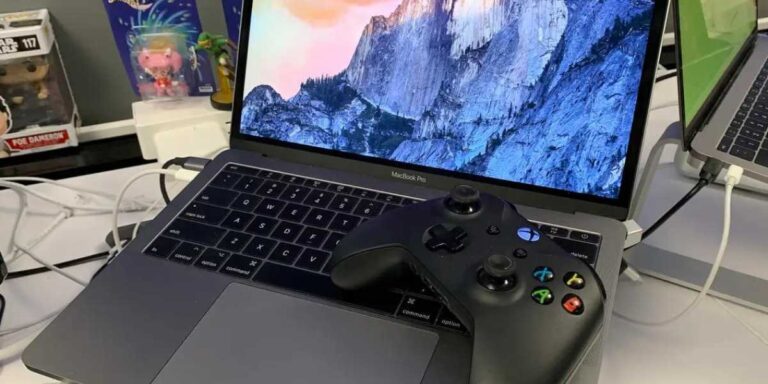
How to Connect Xbox Controller to Mac?

0

If you’re a gamer and you own a Mac, you might be wondering how to connect your Xbox controller to your computer. Fortunately, connecting your Xbox controller to your Mac is a straightforward process, and it can enhance your gaming experience significantly. In this article, we will guide you through the steps of connecting your Xbox controller to your Mac.

Step 1: Check Compatibility

Before you start the connection process, it’s essential to make sure that your Xbox controller is compatible with your Mac. Xbox controllers made after June 2015 are compatible with Mac computers running macOS 10.11 or later. You can check the model and compatibility of your controller by looking at the label on the back of the controller.

Step 1: Check Compatibility

Step 2: Enable Bluetooth on your Mac

The next step is to enable Bluetooth on your Mac. Bluetooth is the wireless technology that allows your Xbox controller to communicate with your computer. To enable Bluetooth on your Mac, follow these steps:

  1. Click on the Apple menu in the top-left corner of your screen.
  2. Select “System Preferences.”
  3. Click on “Bluetooth.”
  4. Ensure that Bluetooth is turned on.

Step 3: Put Your Xbox Controller in Pairing Mode

To connect your Xbox controller to your Mac, you need to put it in pairing mode. Here’s how:

  1. Turn on your Xbox controller by pressing the Xbox button in the center.
  2. Hold down the “Pair” button on the back of your controller for a few seconds until the Xbox logo starts flashing rapidly.

How to Screen Record on Mac?

Step 4: Connect your Xbox Controller to your Mac

Now that your controller is in pairing mode, you can connect it to your Mac. Here’s how:

  1. Click on the Apple menu in the top-left corner of your screen.
  2. Select “System Preferences.”
  3. Click on “Bluetooth.”
  4. Wait for your Xbox controller to appear in the list of available devices.
  5. Click on “Connect.”

Step 5: Test Your Connection

Once you’ve connected your Xbox controller to your Mac, it’s a good idea to test the connection to make sure everything is working correctly. Here’s how:

  1. Open a game that supports controllers on your Mac.
  2. Start playing the game and test the controller’s buttons and joysticks to ensure that everything is working correctly.

Additional Tips

Here are some additional tips to help you get the most out of your Xbox controller on your Mac:

  1. You can customize the buttons and joysticks of your Xbox controller using third-party software like ControllerMate or Joystick Mapper.
  2. Some games on Mac may require you to manually configure the controller settings in the game’s options menu. Be sure to check the game’s documentation for more information.
  3. If you’re having trouble connecting your Xbox controller to your Mac, try resetting your controller by holding down the Xbox button on the front of the controller for several seconds.
  4. If you want to use multiple Xbox controllers on your Mac, you need to pair each controller separately.

Final Thoughts

Connecting your Xbox controller to your Mac is a straightforward process that can significantly enhance your gaming experience. By following these steps, you can easily connect your controller to your Mac and start playing your favorite games. Remember to check for compatibility and test your connection to ensure that everything is working correctly. With these tips and tricks, you’ll be gaming like a pro on your Mac in no time.

Why Is My Mac So Slow?

Whether you’re a casual gamer or a serious gamer, using an Xbox controller on your Mac can improve your gaming experience significantly. The controller’s ergonomic design and responsive buttons and joysticks make it an excellent choice for gaming on your Mac.

Furthermore, using an Xbox controller on your Mac can give you access to a wider range of games that may not be available on other platforms. With the rise of game streaming services like Xbox Game Pass and Stadia, gaming on your Mac has never been easier.

However, keep in mind that not all games are optimized for controllers, so you may need to tweak your settings to get the best experience. Some games may also require specific button mapping or controller configurations, so be sure to check the game’s documentation for more information.

In conclusion, connecting your Xbox controller to your Mac is a quick and easy process that can enhance your gaming experience significantly. With these steps and additional tips, you can start gaming like a pro on your Mac in no time. Enjoy the comfort and convenience of using an Xbox controller on your Mac, and have fun playing your favorite games!

How to Screenshot on Mac?

0

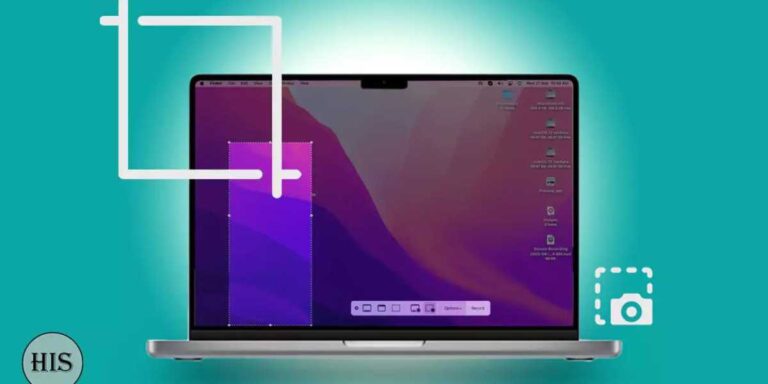
Screenshots are a useful feature on computers that enable you to capture and save an image of what’s displayed on your screen. Taking screenshots on Mac is easy and there are different methods to do so. In this article, we will explain how to take a screenshot on Mac using different methods.

Method 1: Using Keyboard Shortcuts

The easiest and most common way to take a screenshot on Mac is by using keyboard shortcuts. Here are some keyboard shortcuts that you can use:

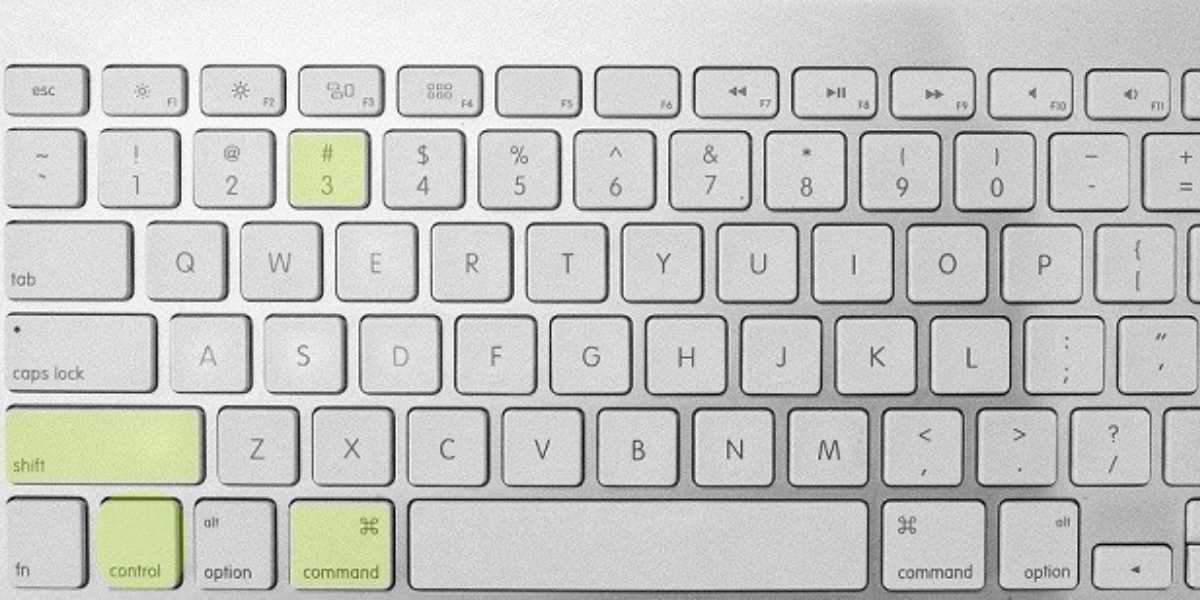
  1. Capture the entire screen: Press Command + Shift + 3. The screenshot will be saved to your desktop.
  2. Capture a specific area: Press Command + Shift + 4. The cursor will change to a crosshair. Click and drag the cursor to select the area you want to capture. Release the mouse button to take the screenshot. The screenshot will be saved to your desktop.
  3. Capture a specific window: Press Command + Shift + 4, then press the spacebar. The cursor will change to a camera. Move the cursor over the window you want to capture and click the mouse button. The screenshot will be saved to your desktop.

Note: The keyboard shortcuts may vary depending on your version of macOS.

Method 1: Using Keyboard Shortcuts

Method 2: Using the Screenshot App

macOS also has a built-in Screenshot app that you can use to take screenshots. Here’s how to use the Screenshot app:

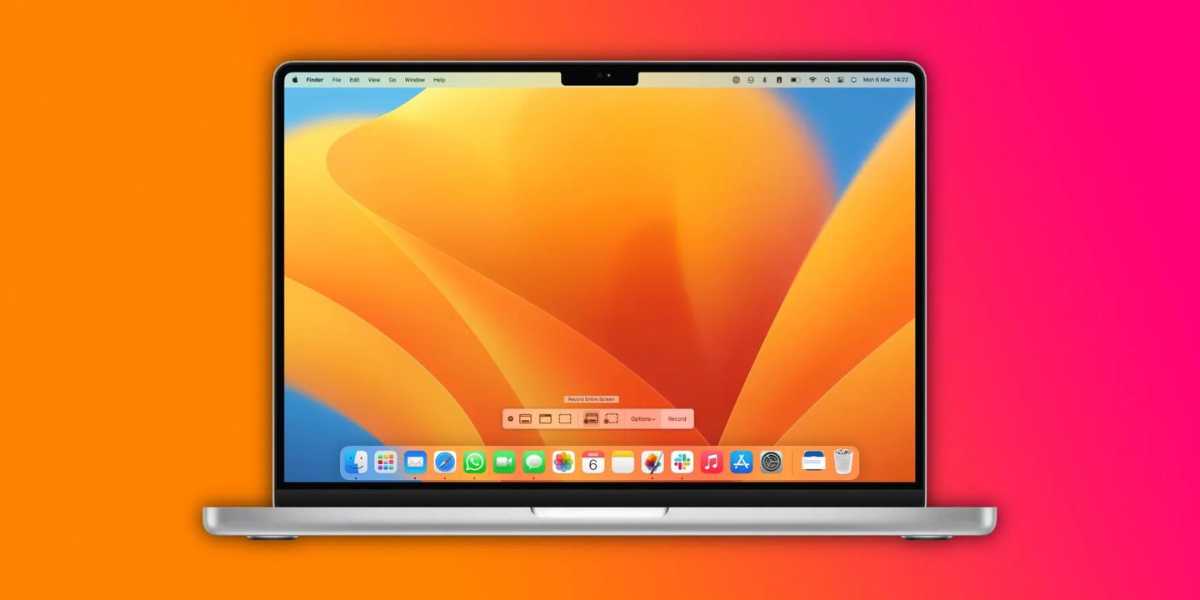
  1. Open the Screenshot app by pressing Command + Shift + 5.
  2. Select the type of screenshot you want to take from the options on the bottom of the screen.
  3. Click “Capture” or press the spacebar to take the screenshot.
  4. The screenshot will appear in the bottom right corner of your screen. Click on it to open it in the Preview app.
  5. Save the screenshot by selecting “File” and “Save” or pressing Command + S.

Note: The Screenshot app provides additional features such as the ability to record the screen and set a timer for the screenshot.

How to Factory Reset Mac?

Method 3: Using Third-Party Apps

Apart from the built-in tools, there are also various third-party screenshot tools available for Mac that offer additional features such as editing, annotating, and sharing. Here are some popular third-party screenshot tools:

  1. Snagit: A paid app that enables you to capture screenshots, record videos, and edit and share them.
  2. Skitch: A free app that enables you to capture screenshots and annotate them with text, arrows, and shapes.
  3. Lightshot: A free app that enables you to capture screenshots and edit and share them.

Additional Tips and Considerations

Here are some additional tips and considerations to keep in mind when taking screenshots on your Mac:

  1. If you want to change the default location where screenshots are saved, you can do so by using the Terminal app. Type “defaults write com.apple.screencapture location [path]” in the Terminal app, where “[path]” is the path of the folder where you want to save the screenshots.
  2. If you want to capture a screenshot of a menu, press Command + Shift + 4, then press the spacebar. The cursor will change to a camera. Click on the menu to capture it.
  3. If you want to capture a screenshot with a specific resolution, press Command + Shift + 5, then click “Options” and select the desired resolution.
  4. If you want to capture a screenshot of a webpage, you can use the “Screenshot” feature in the Safari browser. Open the webpage you want to capture, click “File” and “Export as PDF,” then select “PDF” and click “Save.”

Final Thoughts

Taking screenshots on Mac is easy and can be done using different methods. By following these methods, you can quickly and easily capture images of your screen, whether you need to share something with a colleague or save something for your own reference. Remember to explore the different features offered by the built-in Screenshot app and third-party apps to find the tools that work best for your needs.

How to Screen Record on Mac?

Additionally, keep in mind that taking screenshots can be a useful tool, but it’s important to be respectful of others’ privacy. Be sure to obtain consent before taking screenshots of other people’s work or personal information, and be mindful of sensitive or confidential information that may be captured in your screenshots.

In conclusion, knowing how to take a screenshot on your Mac is a useful skill that can help you save time, communicate more effectively, and capture important information. With these tips and tricks, you can become a pro at taking screenshots on your Mac in no time.

How to Factory Reset Mac?

0

Mac is one of the most popular operating systems used by millions of users worldwide. Although the macOS operating system is known for its stability, performance, and security, it can slow down over time or may face various issues that require you to reset your Mac. In such situations, a factory reset can help you restore your Mac to its original state, just like when you first bought it. In this article, we will explain how to factory reset Mac step-by-step.

Before you begin: Backup Your Data

Before you proceed with a factory reset, it is crucial to back up all your important data to prevent losing any essential files. You can create a backup by using Time Machine or any other third-party backup tool. Ensure that you save the backup to an external drive or cloud storage service like iCloud, Dropbox, or Google Drive. Once you have backed up your data, you can proceed with the factory reset.

Before you begin: Backup Your Data

Step 1: Restart Your Mac in Recovery Mode

To begin the factory reset process, you need to restart your Mac in Recovery Mode. Follow these steps:

  1. Shut down your Mac by clicking on the Apple logo in the top left corner and selecting “Shut Down.”
  2. Press and hold the Command + R keys on your keyboard.
  3. Keep holding the keys until you see the Apple logo or a spinning globe.

Once you enter Recovery Mode, you will see the macOS Utilities window.

How to Screen Record on Mac?

Step 2: Erase the Hard Drive

Before you proceed with the factory reset, you need to erase your Mac’s hard drive to delete all the data and settings. Here are the steps to follow:

  1. Click on the “Disk Utility” option in the macOS Utilities window and click “Continue.”
  2. Select your Mac’s hard drive from the list on the left side of the Disk Utility window.
  3. Click on the “Erase” button at the top of the Disk Utility window.
  4. In the “Format” dropdown menu, select “Mac OS Extended (Journaled)” or “APFS” for newer Macs.
  5. Enter a name for the hard drive in the “Name” field.
  6. Click on the “Erase” button to erase the hard drive.

Note: Erasing the hard drive will delete all the data and settings from your Mac. Make sure you have backed up your data before proceeding.

Step 3: Reinstall macOS

Once you have erased your Mac’s hard drive, you can reinstall the macOS operating system to restore your Mac to its original state. Follow these steps:

  1. Click on the “Reinstall macOS” option in the macOS Utilities window and click “Continue.”
  2. Follow the instructions on the screen to select your language and agree to the terms and conditions.
  3. Select the hard drive you erased in Step 2 as the installation location.
  4. Click on the “Install” button to begin the reinstallation process.
  5. Wait for the installation to complete, which may take some time.

Note: Make sure your Mac is connected to a stable internet connection during the reinstallation process.

Step 4: Set up Your Mac

Once the reinstallation is complete, your Mac will restart, and you will see the setup assistant window. Follow the instructions to set up your Mac, including selecting your language, region, creating a user account, and more.

Conclusion

A factory reset is a useful method to restore your Mac to its original state and resolve any performance or software-related issues. However, before you proceed with the factory reset process, make sure you have backed up all your important data to prevent any loss. Follow the above steps to factory reset your Mac and restore it to its original state.

Why Is My Mac So Slow?

Additional Tips and Considerations

Here are some additional tips and considerations to keep in mind when performing a factory reset on your Mac:

  1. Make sure you have the latest macOS version installed on your Mac. It’s always a good idea to keep your operating system up-to-date to ensure the best performance and security.
  2. If you want to keep your personal files and data but restore your Mac to its original settings, you can choose the “Restore from Time Machine Backup” option in the macOS Utilities window instead of erasing the hard drive.
  3. If you’re selling or giving away your Mac, it’s important to securely erase your hard drive to prevent any personal data from being accessed by others. In this case, you can use the “Security Options” button in the Disk Utility window to choose from various secure erase options.
  4. If you’re using a Mac with Apple Silicon, such as the M1 chip, the factory reset process is slightly different. Instead of holding the Command + R keys, you need to press and hold the power button until the startup options appear. From there, select “Options” and then “Reinstall macOS.”
  5. In case you face any issues during the factory reset process or have any questions, you can always refer to Apple’s official support website or contact their customer support for assistance.

Final Thoughts

Performing a factory reset on your Mac is a straightforward process that can help you restore your Mac to its original state and resolve various issues. By following the above steps and considerations, you can ensure that your factory reset process goes smoothly and that you don’t lose any important data. Remember to always backup your data before proceeding with a factory reset and keep your Mac’s operating system up-to-date for optimal performance and security.

How to Screen Record on Mac?

0

Screen recording on a Mac is a useful feature that allows you to capture video footage of your screen. Whether you’re creating tutorials, recording gameplay, or capturing a video call, screen recording on a Mac is an easy and convenient way to do it. In this article, we’ll go through the steps to screen record on a Mac, as well as some helpful tips and tricks.

Step-by-Step Guide to Screen Record on Mac

  1. Open the “QuickTime Player” To start screen recording on your Mac, you need to open the “QuickTime Player” application. You can find this application by searching for it in the “Spotlight” search bar or by navigating to “Applications” in Finder.
  2. Select “New Screen Recording” Once you have opened “QuickTime Player,” click on “File” in the top menu bar, then select “New Screen Recording” from the drop-down menu.
  3. Customize Recording Settings After selecting “New Screen Recording,” a new window will appear with a red “Record” button. Before you begin recording, you can customize some settings. To do this, click on the drop-down arrow next to the record button.

Here you can select your microphone input if you want to record audio, select where to save your recording, and choose whether to show mouse clicks or not.

Step-by-Step Guide to Screen Record on Mac
  1. Start Recording Once you have customized your settings, click on the red “Record” button to start recording your screen. A countdown of three seconds will appear before recording starts. You can then start recording whatever you want to capture on your screen.
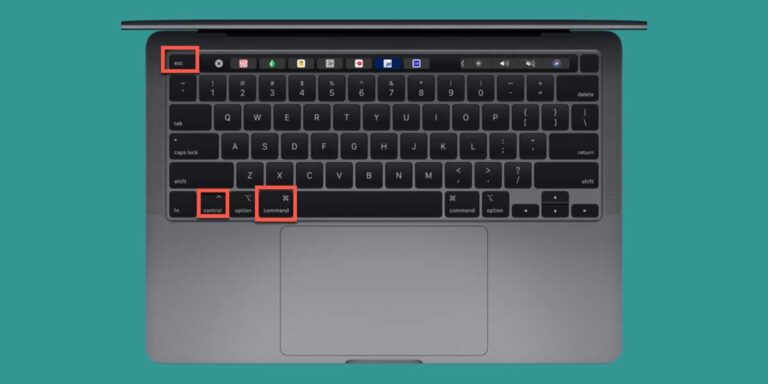
  2. Stop Recording To stop recording, simply click on the “Stop” button in the menu bar, or use the shortcut “Command + Control + Esc” to stop the recording. Your recorded video will then be saved to the location you specified earlier.

Tips and Tricks for Screen Recording on Mac

  1. Use Keyboard Shortcuts If you need to start or stop a recording quickly, you can use keyboard shortcuts. Press “Command + Shift + 5” to open the screen recording tool, then use “Command + Shift + 1” to start recording and “Command + Control + Esc” to stop recording.
  2. Use External Microphones If you want to record audio along with your screen recording, consider using an external microphone. This can help improve the quality of your audio and make your screen recording more professional.
  3. Use Third-Party Screen Recording Software While the built-in screen recording feature on Mac is handy, you might find that third-party software offers more advanced features. Some popular options include Camtasia, ScreenFlow, and OBS Studio.
  4. Use Editing Software Once you have finished recording your screen, you may want to edit the footage. There are several video editing software options available on Mac, including iMovie, Final Cut Pro, and Adobe Premiere Pro.

It’s important to note that screen recording may affect the performance of your Mac, especially if you’re recording high-quality video for an extended period of time. To avoid any potential performance issues, make sure to close any unnecessary applications and clear out any temporary files or caches before starting your recording.

Why Is My Mac So Slow?

Additionally, if you plan on using your screen recording for professional or commercial purposes, make sure to obtain the necessary permissions and rights to any copyrighted materials that may be included in your recording.

Overall, screen recording on a Mac is a powerful tool that can help you create engaging and informative content. By following the steps outlined above and utilizing some helpful tips and tricks, you can easily start recording your screen on your Mac and take your content creation to the next level.

Conclusion

Screen recording on a Mac is a simple and useful feature that can help you capture video footage of your screen. Whether you’re creating tutorials, recording gameplay, or capturing a video call, screen recording on a Mac is an easy and convenient way to do it. By following the step-by-step guide outlined above and using some helpful tips and tricks, you can start screen recording on your Mac like a pro.

What is a Mac?

Why Is My Mac So Slow?

0

If you own a Mac, you may have noticed that it has started to slow down over time. This can be frustrating, especially if you rely on your computer for work or personal use. In this article, we’ll take a look at some of the most common reasons why it may be running slow and what you can do to fix it.

Reasons Why Your Mac Is Running Slow

  1. Too many applications running at once If you have too many applications running at once, your Mac may become slow and unresponsive. To fix this, try closing any applications that you’re not using.
  2. Outdated software Outdated software can cause your Mac to slow down or even crash. Make sure to keep your operating system and applications up-to-date to avoid this issue.
  3. Hard drive is full If your hard drive is full, it can slow down your Mac’s performance. Try deleting any unnecessary files or applications to free up space.
  4. Not enough RAM If your Mac doesn’t have enough RAM, it may struggle to run multiple applications at once. Consider upgrading your RAM if you frequently use memory-intensive applications.
  5. Malware or viruses Malware or viruses can also cause your Mac to slow down. Make sure to install and run antivirus software to detect and remove any malicious software.
  6. Overheating Overheating can cause your Mac to slow down and even shut down. Make sure your Mac has proper ventilation and is not overheating.
  7. Hardware issues Hardware issues, such as a failing hard drive or a faulty fan, can also cause your Mac to slow down. Consider taking your Mac to a professional for repair if you suspect hardware issues.

How to Fix a Slow Mac?

  1. Close unnecessary applications As mentioned before, having too many applications running at once can slow down your Mac. Try closing any unnecessary applications to free up resources.
  2. Update software Keeping your operating system and applications up-to-date can fix any bugs or issues that may be causing your Mac to slow down.
  3. Free up space Deleting unnecessary files and applications can free up space on your hard drive and improve your Mac’s performance.
  4. Add more RAM If your Mac is struggling with memory-intensive applications, consider upgrading your RAM.
  5. Run antivirus software Install and run antivirus software to detect and remove any malware or viruses that may be causing your Mac to slow down.
  6. Manage startup items Your Mac may be slow to start up if you have too many applications set to launch at startup. Go to System Preferences > Users & Groups > Login Items to manage startup items.
  7. Check for hardware issues If you’ve tried all the above steps and your Mac is still running slow, it may be a hardware issue. Consider taking your Mac to a professional for repair.
How to Fix a Slow Mac?

Tips for Maintaining a Fast Mac

In addition to the steps outlined above, there are also several tips you can follow to maintain a fast Mac over time:

  1. Regularly clean your Mac Dust and debris can accumulate inside your Mac, which can cause it to overheat and slow down. Regularly cleaning your Mac can help prevent this issue. You can use compressed air or a soft cloth to clean the outside and inside of your Mac.
  2. Manage your files Organizing your files and folders can help improve your Mac’s performance. Try to keep your desktop clean and create folders to store documents, photos, and other files.
  3. Use an external hard drive If you’re running out of space on your Mac’s hard drive, consider using an external hard drive to store your files. This can help free up space and improve your Mac’s performance.
  4. Uninstall unused applications Unused applications can take up space on your hard drive and slow down your Mac. Try to uninstall any applications that you’re not using to free up space.
  5. Use a solid-state drive (SSD) Replacing your Mac’s hard drive with an SSD can significantly improve its performance. SSDs are faster and more reliable than traditional hard drives, which can help speed up your Mac.

By following these tips and taking care of your Mac, you can help maintain its performance and keep it running smoothly over time.

What is a Mac?

Conclusion

A slow Mac can be frustrating, but there are several reasons why it may be happening and several steps you can take to fix it. From closing unnecessary applications to upgrading your hardware, there are several ways to improve your Mac’s performance. Additionally, by following tips such as regularly cleaning your Mac and managing your files, you can help maintain a fast Mac over time. With these steps and tips, you can enjoy a faster, more responsive computer and get back to work or play with ease.

How to Snippet on Mac?

What is a Mac?

0

Apple’s Mac is a line of personal computers that has been around since 1984. It is a popular choice for creatives, designers, and people who value aesthetics and high-quality hardware. In this article, we’ll dive deeper into what a Mac is, its history, features, and benefits.

History of the Mac

The Macintosh computer, or “Mac” for short, was first introduced by Apple Inc. on January 24, 1984. It was the first personal computer to feature a graphical user interface (GUI) and a mouse. This made it easier to use for people who were not familiar with computers, and it quickly became a hit with consumers.

Over the years, the Mac has evolved and become more powerful. Apple has released a variety of models, each with its own unique features and specifications. Some of the most popular models include the iMac, MacBook, MacBook Air, and MacBook Pro.

History of the <yoastmark class=
History of the Mac

Features of a Mac

One of the main features of a Mac is its sleek design. Apple puts a lot of effort into creating aesthetically pleasing products, and the Mac is no exception. It is made with high-quality materials and has a minimalist design that looks great in any setting.

Another key feature of a Mac is its operating system, macOS. This is a Unix-based operating system that is known for its stability, security, and ease of use. It is designed specifically for the Mac and is optimized to work seamlessly with the hardware.

Mac computers also come with a range of pre-installed software that is designed to make life easier for users. Some of these apps include Safari (a web browser), Mail (an email client), and Pages (a word processor). Apple also offers a range of productivity and creative apps through its App Store, which users can download and use on their Macs.

How to Snippet on Mac?

Benefits of a Mac

There are several benefits to using a Mac over other types of computers. One of the biggest advantages is the integration between hardware and software. Because Apple designs both the hardware and software, they are optimized to work together seamlessly. This means that Macs can be faster and more efficient than other types of computers.

Another benefit of using a Mac is the quality of the hardware. Apple uses high-quality materials to create its products, and the Mac is no exception. This means that Macs are built to last and can withstand more wear and tear than other computers.

Mac computers are also known for their security. Because macOS is a Unix-based operating system, it is less susceptible to viruses and malware than other types of operating systems. Additionally, Apple has built-in security features such as Gatekeeper and FileVault that help protect users’ data.

Finally, Macs are known for their ease of use. The macOS operating system is designed to be intuitive and user-friendly, making it easy for people of all ages and skill levels to use.

Types of Macs

There are several types available, each with its own set of features and specifications. Let’s take a closer look at some of the most popular Mac models.

iMac: The iMac is a desktop computer that features a high-resolution display, powerful processors, and a slim design. It is a popular choice for creatives and designers who need a large display for their work.

MacBook: The MacBook is a lightweight laptop that is designed for portability. It features a thin and light design, long battery life, and a high-resolution display. It is a popular choice for students and people who work on the go.

MacBook Air: The MacBook Air is another lightweight laptop that is designed for portability. It is even thinner and lighter than the MacBook and features a long battery life. It is a popular choice for people who need a laptop that is easy to carry around.

How to Screenshot on Mac?

MacBook Pro: The MacBook Pro is a powerful laptop that is designed for professionals. It features high-end processors, dedicated graphics cards, and a large, high-resolution display. It is a popular choice for creatives, video editors, and anyone who needs a powerful computer for their work.

Mac Mini: The Mac Mini is a compact desktop computer that is designed to be used with a separate display, keyboard, and mouse. It is a popular choice for people who want a powerful desktop computer without the bulk of a traditional desktop.

Choosing the right Mac

When choosing, it’s important to consider your specific needs and requirements. If you need a powerful computer for graphic design or video editing, the MacBook Pro or iMac may be the best choice. If you need a laptop that is easy to carry around, the MacBook or MacBook Air may be a better choice.

It’s also important to consider your budget. Macs can be expensive, and some models are more expensive than others. If you’re on a tight budget, the MacBook Air or Mac Mini may be a better choice than the MacBook Pro or iMac.

Finally, it’s important to consider the software and apps you will be using. While most software is available for both Mac and Windows, there may be some software that is only available on one platform. Be sure to check the compatibility of the software you need before choosing.

Conclusion

It is a powerful and efficient personal computer that is known for its sleek design, high-quality hardware, and easy-to-use operating system. There are several types of Macs available, each with its own set of features and specifications. When choosing a Mac, it’s important to consider your specific needs and requirements, your budget, and the software and apps you will be using. With the right Mac, you can increase your productivity, creativity, and efficiency.

How to Get iMessage on PC without Mac?

0

iMessage is a popular messaging app for Apple users that allows them to send and receive text messages, photos, videos, and more. While iMessage is primarily designed for use on Apple devices, there are ways to access it on a PC without owning a Mac computer. In this guide, we will show you how to get iMessage on PC without Mac.

Method 1: Using iPadian Emulator

One of the easiest ways to get iMessage on PC without Mac is by using an emulator called iPadian. iPadian is a software that allows you to run iOS apps on Windows computers. Follow these steps to get iMessage on PC using iPadian:

Step 1: Download and Install iPadian Go to the official website of iPadian and download the emulator for your Windows PC. After the download is complete, run the setup file and follow the installation instructions.

Step 2: Launch iPadian Once the installation is complete, launch iPadian on your PC. The emulator will open in a window that looks similar to an iPad home screen.

Step 3: Search for iMessage Using the search bar in the top right corner of the screen, search for iMessage. Once you find it, click on the app to download and install it.

Step 4: Open iMessage After the installation is complete, you can open iMessage on your PC through the iPadian emulator. Log in with your Apple ID and start using iMessage on your PC.

Method 2: Using Chrome Remote Desktop

Another way to get iMessage on PC without Mac is by using the Chrome Remote Desktop app. This method requires you to have a Mac computer with iMessage installed and a Google Chrome browser on both the Mac and the PC. Follow these steps to get iMessage on PC using Chrome Remote Desktop:

Method 2: Using Chrome Remote Desktop

Step 1: Install Chrome Remote Desktop Download and install the Chrome Remote Desktop app on both your Mac and your PC.

Step 2: Set up Remote Access On your Mac, open the Chrome Remote Desktop app and select “Enable Remote Connections.” Set a PIN for security purposes.

Step 3: Connect to Mac from PC On your PC, open the Chrome Remote Desktop app and select “Remote Access.” Enter the PIN you created in Step 2 and select the Mac computer you want to connect to.

Step 4: Use iMessage on PC After you have established the remote connection, you can open iMessage on your Mac and use it on your PC through the remote desktop connection.

How to make Fence in Minecraft PC?

Method 3: Using Jailbreak

Jailbreaking your iPhone or iPad is a more complex method of getting iMessage on PC without Mac, and it can void your device’s warranty. However, it does allow you to use iMessage on a PC using a program called Cydia. Follow these steps to jailbreak your device and get iMessage on PC:

Step 1: Jailbreak your Device Jailbreak your iPhone or iPad using a tool like Checkra1n or unc0ver. This will give you access to Cydia.

Step 2: Install Cydia on PC Install Cydia on your PC using a program called Cydia Impactor.

Step 3: Download Remote Messages Download and install the Remote Messages app from Cydia on your iPhone or iPad.

Step 4: Connect to Remote Messages Open the Remote Messages app on your device and find the IP address and port number for the web interface. Enter this information into your PC’s web browser to access iMessage on your PC.

Use a Remote Access Tool

Another way to get iMessage on your PC without a Mac is to use a remote access tool. This method involves using a third-party app to remotely access your Mac computer from your PC. Here are the steps to follow:

Step 1: On your Mac, go to System Preferences > Sharing > Remote Management. Enable Remote Management and make sure that your user account is authorized for remote access.

Step 2: On your PC, download and install a remote access tool like TeamViewer or Chrome Remote Desktop.

Step 3: Launch the remote access tool on your PC and enter the IP address of your Mac computer.

Step 4: You will be prompted to enter the login credentials for your Mac computer. Once you are connected, you can access iMessage on your PC as if you were using your Mac.

How to Play Simpsons Hit and Run on PC?

Use a Virtual Machine

If you don’t have a Mac computer, you can still get iMessage on your PC by using a virtual machine. A virtual machine is a software application that allows you to run a separate operating system within your current operating system. Here’s how to use a virtual machine to get iMessage on your PC:

Step 1: Download and install a virtual machine program like VirtualBox or VMware on your PC.

Step 2: Download a copy of macOS from the App Store or from another source.

Step 3: Create a new virtual machine using the virtual machine program and install macOS on it.

And Step 4: Once macOS is installed, launch the iMessage app and log in with your Apple ID.

Step 5: You can now use iMessage on your PC through the virtual machine.