




Home Blog Page 8

How to get more Storage on PC?

0

Running out of storage space on your PC can be frustrating, especially if you’re trying to store important files or run resource-intensive programs. However, there are several steps you can take to get more storage on your PC without having to buy a new computer or external hard drive. In this article, we’ll go over some effective ways to increase your PC’s storage capacity.

Uninstall Unused Programs

One of the easiest ways to free up space on your PC is to uninstall programs that you no longer use. To uninstall a program, go to Settings > Apps > Apps & features, then click on the program you want to remove and select Uninstall. Be sure to only uninstall programs that you’re sure you don’t need, as some programs may be important for your PC’s functionality.

Use Disk Cleanup

Windows has a built-in Disk Cleanup tool that can help you free up space on your PC. To use Disk Cleanup, search for it in the Windows search bar and select the drive you want to clean up. The tool will scan your drive for unnecessary files and provide a list of options for deletion, such as temporary files, recycle bin items, and more.
Use Disk Cleanup
Use Disk Cleanup

Delete Temporary Files

Temporary files can accumulate on your PC over time and take up valuable storage space. To delete temporary files, go to Settings > System > Storage, then select the drive you want to clean up. Scroll down and select Temporary files, then check the boxes next to the types of files you want to delete and click Remove files.

Move Files to External Storage

If you have important files that you don’t need to access regularly, consider moving them to an external hard drive or cloud storage service. This can free up space on your PC’s hard drive while still allowing you to access your files when needed. You can also move large files, such as movies or music, to external storage to free up space.

Use Storage Sense

Windows has a built-in feature called Storage Sense that can help you automatically free up space on your PC. To turn on Storage Sense, go to Settings > System > Storage, then toggle the switch next to Storage Sense to On. You can configure Storage Sense to automatically delete temporary files, remove old files from your Downloads folder, and more.

Disable Hibernation

Hibernation is a feature that allows your PC to save your current state and shut down, then resume where you left off when you turn it back on. While this can be a useful feature, it also takes up valuable storage space. To disable hibernation, search for Command Prompt in the Windows search bar, right-click on it, and select Run as administrator. Then type “powercfg.exe /hibernate off” and press Enter.

How to Clean Up PC?

Use Cloud Storage

Cloud storage services such as OneDrive, Google Drive, and Dropbox allow you to store your files on remote servers, freeing up space on your PC’s hard drive. You can access your files from anywhere with an internet connection and easily share them with others. Many cloud storage services offer a limited amount of free storage, with additional storage available for a fee.

Disable System Restore

System Restore is a feature that allows you to restore your PC to a previous state in case of a problem. However, it also takes up a significant amount of storage space. To disable System Restore, go to Settings > System > System Protection, then select the drive you want to configure and click Configure. Select the option to Disable system protection and click OK.

Clear Browser Cache

Your web browser stores temporary files, such as images and website data, to help web pages load faster. However, this cache can also take up a significant amount of storage space. To clear your browser cache, open your browser and go to the settings or options menu. Look for the option to clear your browsing data or cache and select the appropriate options to delete the files.

Use an External Hard Drive

If you’ve tried all of the above steps and still need more storage space, consider investing in an external hard drive. External hard drives come in a variety of sizes and can be connected to your PC via USB or other ports. They’re also portable, so you can easily take your files with you wherever you go.

Upgrade Your PC’s Hard Drive

If you’re comfortable with opening up your PC, you can upgrade your hard drive to one with a larger capacity. This will require some technical know-how and may void your warranty, so it’s important to do your research and make sure you know what you’re doing.

Use Storage Optimization Tools

There are a variety of third-party tools available that can help you optimize your PC’s storage, such as CCleaner or WinDirStat. These tools can help you identify and delete unnecessary files, as well as optimize your hard drive for better performance.

Why my PC is not Connecting to Wi-Fi?

Conclusion

Running out of storage space on your PC can be frustrating, but there are many steps you can take to free up space and increase your storage capacity. By uninstalling unused programs, using Disk Cleanup, deleting temporary files, moving files to external storage, using Storage Sense, disabling hibernation and System Restore, clearing browser cache, using an external hard drive, upgrading your PC’s hard drive, and using storage optimization tools, you can keep your PC running smoothly and efficiently. With these tips, you’ll never have to worry about running out of space on your PC again.


How to Clean Up PC?

0

Is your PC running slow or behaving strangely? It might be time for a thorough clean-up. Over time, your computer accumulates unnecessary files, programs, and system processes that can cause it to slow down or even crash. Fortunately, cleaning up your PC isn’t as difficult as it might sound. In this article, we’ll show you how to clean up your PC and keep it running smoothly.

Uninstall Unnecessary Programs

The first step in cleaning up your PC is to uninstall any programs you don’t need. Programs that you no longer use take up valuable hard drive space and can cause your computer to run more slowly. To uninstall a program, go to Control Panel > Programs > Programs and Features. Select the program you want to uninstall and click Uninstall.

Delete Temporary Files

Temporary files are created by Windows and other programs to store data temporarily. These files can accumulate over time and take up a significant amount of space on your hard drive. To delete temporary files, type %temp% into the Windows search bar and press Enter. This will open the Temp folder. Select all the files in the folder and press Delete.

Delete Temporary Files

Remove Unused Startup Programs

When you start your computer, some programs automatically launch in the background. This can slow down your computer and cause it to take longer to start up. To remove unused startup programs, open Task Manager by pressing Ctrl + Shift + Esc. Click on the Startup tab to see a list of programs that launch at startup. Disable any programs that you don’t need by right-clicking on them and selecting Disable.

Clean Up Your Hard Drive

Over time, your hard drive can become cluttered with files that you don’t need. To clean up your hard drive, go to File Explorer and right-click on your hard drive. Select Properties, then click on the Disk Cleanup button. This will scan your hard drive for unnecessary files and allow you to delete them.

Why my PC is not Connecting to Wi-Fi?

Run a Disk Check

Sometimes, errors can occur on your hard drive that can cause your computer to run more slowly or even crash. To check your hard drive for errors, go to File Explorer and right-click on your hard drive. Select Properties, then click on the Tools tab. Click on Check under the Error Checking section to scan your hard drive for errors.

Update Your Drivers

Outdated drivers can cause your computer to run more slowly and can even cause crashes. To update your drivers, go to Device Manager by pressing Windows key + X and selecting Device Manager. Find the device that you want to update, right-click on it, and select Update Driver.

Remove Malware

Malware can cause your computer to behave strangely, run slowly, or even crash. To remove malware, use a trusted anti-virus program to scan your computer for threats. Make sure to keep your anti-virus program up to date to ensure that it can detect the latest threats.

Remove Malware
Remove Malware

Clean Up Your Registry

Your computer’s registry is a database that stores information about your system settings and configurations. Over time, the registry can become cluttered with outdated and unnecessary entries, which can cause your computer to run more slowly. To clean up your registry, use a trusted registry cleaner program.

Defragment Your Hard Drive

When you store files on your hard drive, they can become fragmented, which means that they are scattered across different areas of the hard drive. This can cause your computer to run more slowly. To defragment your hard drive, go to File Explorer and right-click on your hard drive. Select Properties, then click on the Tools tab. Click on Optimize under the Optimize and Defragment drive section to defragment your hard drive.

Keep Your PC Up to Date

It’s essential to keep your PC up to date to ensure that it runs smoothly and securely. This includes updating your operating system, drivers, and software programs. To update your operating system, go to Settings > Update & Security > Windows Update. To update your software programs, use the built-in update feature or visit the manufacturer’s website to download the latest version.

How to Add Bluetooth to PC?

Organize Your Files

Organizing your files can make it easier to find what you need and can also free up space on your hard drive. Start by creating folders to organize your files by category, such as documents, pictures, and music. Delete any files that you no longer need and move important files to an external hard drive or cloud storage service to free up space.

Use a Disk Cleanup Tool

Disk cleanup tools can automate many of the steps we’ve outlined above and make cleaning up your PC even easier. Windows has a built-in Disk Cleanup tool that you can use by searching for it in the Windows search bar. There are also many third-party disk cleanup tools available, some of which are free.

Keep Your PC Cool

Overheating can cause your PC to slow down and can even cause hardware damage. Make sure that your computer has adequate ventilation and that the fans are clean and functioning properly. You can also use a cooling pad to help dissipate heat.

Consider Upgrading Your Hardware

If your PC is running slowly despite your best efforts to clean it up, it might be time to consider upgrading your hardware. Upgrading your RAM, hard drive, or graphics card can significantly improve your computer’s performance.

In conclusion, cleaning up your PC is an important task that can help to keep it running smoothly and securely. By following the steps we’ve outlined in this article, you can remove unnecessary files, programs, and system processes, update your drivers and software, and keep your PC cool. If you’re still experiencing issues after cleaning up your PC, consider seeking the help of a professional computer technician.

Why my PC is not Connecting to Wi-Fi?

0

If you’re struggling to connect your PC to WiFi, you’re not alone. WiFi connectivity issues are among the most common computer problems, and they can have various causes, such as hardware or software malfunctions, network settings, interference, distance, or outdated drivers. However, with some basic troubleshooting, you can usually diagnose and fix the problem. In this article, we’ll discuss some possible reasons why your PC is not connecting to WiFi and suggest some solutions.

1. Check Your WiFi Network

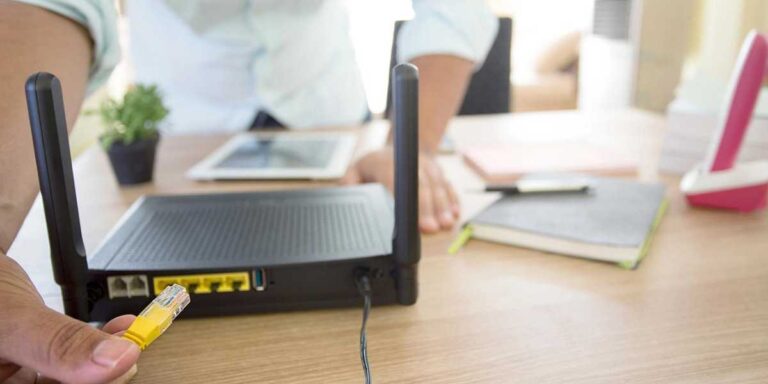
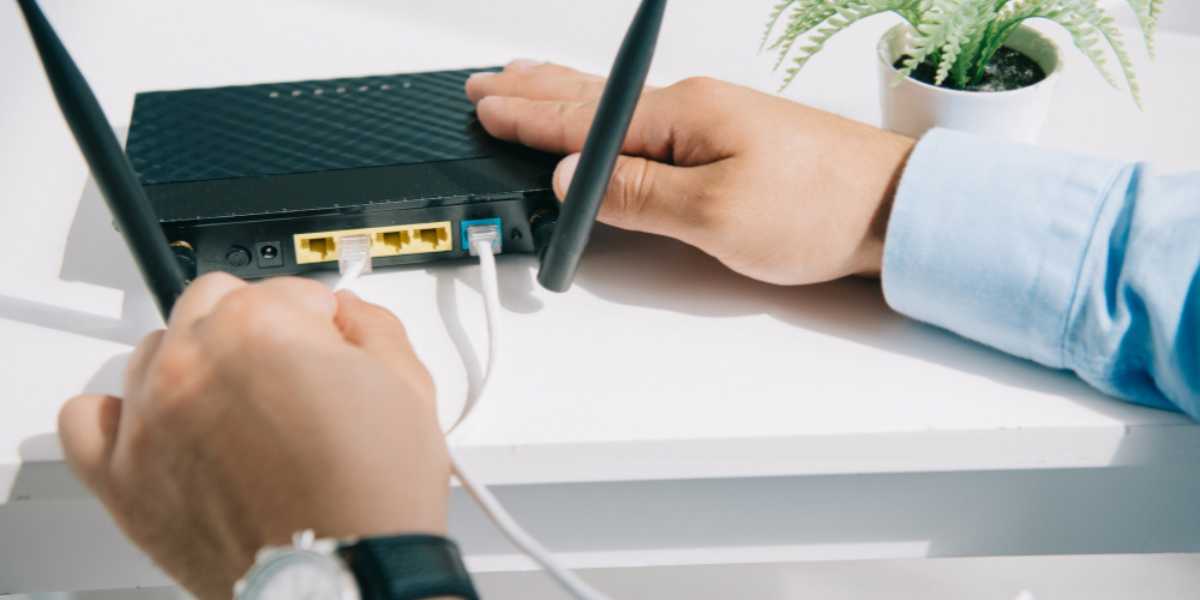
Before you try to fix your PC, make sure that your WiFi network is working properly. Check if other devices, such as smartphones or tablets, can connect to the same network. If they can, the problem is more likely to be on your PC side. If they can’t, the problem might be with your router or modem, which you should reboot or reset as a first step. Make sure that your WiFi signal is strong enough, and that your PC is within the range of your router. If your signal is weak, you may need to move closer to the router, use a WiFi booster, or adjust your router’s antenna.

1. Check Your WiFi Network

2. Check Your PC Settings

Assuming that your WiFi network is functional, the next step is to check your PC settings. Make sure that your WiFi adapter is turned on and enabled. To do this, go to the Device Manager, find your WiFi adapter under Network adapters, right-click on it, and select Enable. If you see a yellow exclamation mark next to your WiFi adapter, it means that there’s a driver problem, which we’ll address later. Make sure that your PC is not in airplane mode, which disables all wireless connections. To check this, go to the Windows settings, click on Network & Internet, and toggle off Airplane mode if it’s on.

3. Check Your Network Settings

If your WiFi adapter is enabled and your PC is not in airplane mode, but you still can’t connect to your WiFi network, the problem might be with your network settings. Make sure that your network is set to connect automatically. To do this, go to the Windows settings, click on Network & Internet, select WiFi, and click on the Manage known networks link. Find your WiFi network on the list, click on it, and make sure that the Connect automatically option is on. If your network requires a password, make sure that you enter it correctly, and that your Caps Lock is off. If you have recently changed your network password, you may need to forget the network and reconnect to it with the new password.

4. Update Your WiFi Driver

If your network settings are correct, but you still can’t connect to your WiFi network, the problem might be with your WiFi driver. Drivers are software programs that allow your PC to communicate with your hardware, such as your WiFi adapter. If your driver is outdated, corrupted, or incompatible with your operating system, you may experience connectivity issues. To update your driver, go to the Device Manager, find your WiFi adapter under Network adapters, right-click on it, and select Update driver. You can choose to update the driver automatically, or you can download and install the latest driver from the manufacturer’s website.

How to Add Bluetooth to PC?

5. Disable Your Firewall or Antivirus

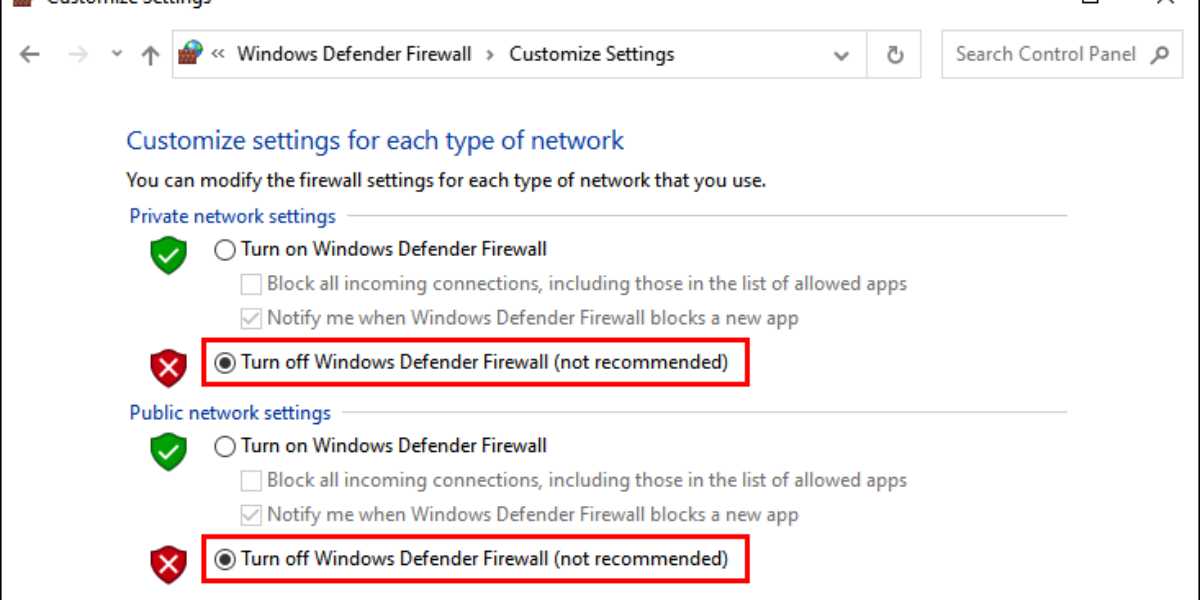
If you have a firewall or antivirus software installed on your PC, it might be blocking your WiFi connection. Firewalls and antivirus programs are designed to protect your PC from external threats, but sometimes they can be too aggressive and block legitimate connections. To test if your firewall or antivirus is the culprit, temporarily disable them and try to connect to your WiFi network. If you can connect, you may need to configure your security software to allow your WiFi connection.

Disable Your Firewall or Antivirus

6. Reset Your Network Settings

If none of the previous steps worked, you can try resetting your network settings. This will erase all your current network configurations and restore them to their default values. To do this, go to the Windows settings, click on Network & Internet, and select Network reset. Follow the prompts to reset your network settings, and restart your PC. After that, try to reconnect to your WiFi network and see if it works.

7. Check Your Hardware

If your PC still can’t connect to your WiFi network, the problem might be with your hardware. Your WiFi adapter or antenna may be damaged, loose, or incompatible with your router. To check this, you can try to connect your PC to another WiFi network, such as a public hotspot, and see if it works. If it does, the problem is more likely to be with your router or network settings. If it doesn’t, you may need to replace your WiFi adapter or antenna.

8. Seek Professional Help

If you have tried all the previous steps and your PC still cannot connect to WiFi, it might be time to seek professional help. You can contact your PC manufacturer, your router manufacturer, or a certified technician to diagnose and fix the problem. They may suggest more advanced solutions, such as reinstalling your operating system, replacing your router, or upgrading your hardware. However, these solutions are usually more expensive and time-consuming, so it’s better to exhaust all the simpler options first.

How to import iphone photos to PC?

In conclusion, if your PC is not connecting to WiFi, there are several possible reasons and solutions. You should start by checking your WiFi network, your PC settings, and your network settings, and then proceed to update your WiFi driver, disable your firewall or antivirus, reset your network settings, check your hardware, and seek professional help if necessary. By following these troubleshooting tips and solutions, you can hopefully resolve your WiFi connectivity issues and get back online.

How to Play Fortnite on PC?

0

Fortnite is a popular battle royale game that has taken the gaming world by storm. With its unique combination of building, shooting, and survival gameplay, it has become a favorite among gamers of all ages. If you’re looking to play Fortnite on your PC, then you’ve come to the right place. In this article, we’ll take you through the step-by-step process of playing Fortnite on your computer.

Step 1: Install Fortnite

The first step to playing Fortnite on your PC is to install the game. You can download Fortnite for free from the Epic Games website. Once you’ve downloaded the installer, double-click it to begin the installation process. Follow the on-screen instructions to complete the installation.

Step 2: Create an Epic Games Account

To play Fortnite, you’ll need to create an Epic Games account. This account will also give you access to other Epic Games titles, such as Gears of War and Unreal Tournament. To create an account, go to the Epic Games website and click on the “Sign In” button in the top right corner. Then click on “Sign Up” and fill out the registration form. You’ll need to provide your email address and choose a password.

Step 2: Create an Epic Games Account

Step 3: Sign In to Epic Games Launcher

After you’ve created your Epic Games account, you’ll need to sign in to the Epic Games Launcher. This launcher is a platform that allows you to download and launch all of your Epic Games titles. To sign in, open the Epic Games Launcher and click on the “Sign In” button in the top right corner. Enter your email address and password and click “Sign In.”

Step 4: Install Fortnite from Epic Games Launcher

Now that you’re signed in to the Epic Games Launcher, it’s time to install Fortnite. To do this, click on the “Store” tab in the launcher and search for “Fortnite.” Click on the “Get” button to download and install the game.

Step 5: Launch Fortnite

Once Fortnite is installed, you can launch the game from the Epic Games Launcher. Click on the “Library” tab in the launcher, and you should see Fortnite listed as one of your games. Click on the “Launch” button to start playing.

Step 6: Customize Your Settings

Before you start playing, you may want to customize your settings to optimize your gameplay experience. You can access the settings menu by clicking on the three horizontal lines in the top right corner of the Fortnite screen. From there, you can adjust your graphics settings, keybinds, and more.

Step 7: Join a Game

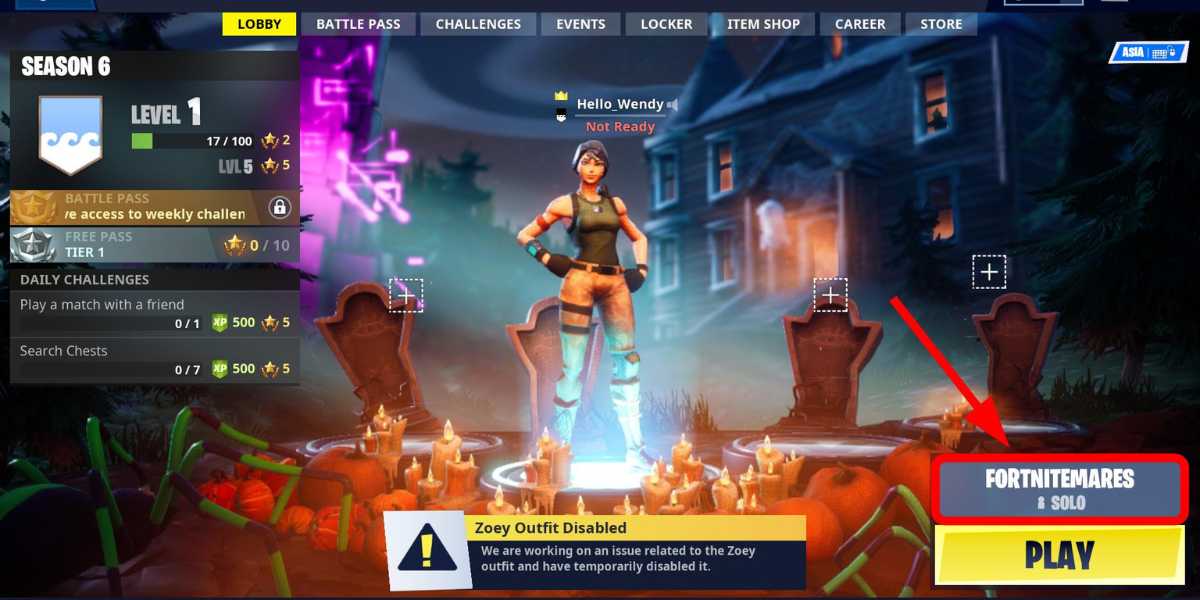
Now that you’ve customized your settings, it’s time to join a game. From the Fortnite main menu, click on the “Battle Royale” button to join a game. You can choose to play solo, duo, or in a squad. Once you’ve selected your game mode, click on the “Play” button to start matchmaking.

Step 7: Join a Game
Step 7: Join a Game

Step 8: Survive and Thrive

Once you’re in a game, it’s time to survive and thrive. In Fortnite, you’ll need to gather resources, build structures, and eliminate other players to be the last one standing. Explore the map, collect weapons and materials, and build structures to protect yourself and gain the high ground. Use your skills and strategy to outlast your opponents and become the champion.

How to Add Bluetooth to PC?

Tips for Playing Fortnite on PC

  • Use a gaming mouse and keyboard: While you can play Fortnite with a regular mouse and keyboard, using a gaming mouse and keyboard can give you a competitive edge.
  • Adjust your graphics settings: Fortnite can be a demanding game, so make sure to adjust your graphics settings to optimize performance on your PC.
  • Practice building: Building is a key component of Fortnite gameplay. It allows you to create structures to protect yourself, gain high ground, and outmaneuver your opponents. Practice building in the game’s creative mode or watch tutorials online to improve your skills.
  • Communicate with your team: If you’re playing in a squad, communication is key. Use in-game voice chat or external communication software like Discord to coordinate with your team and increase your chances of winning.
  • Pay attention to the storm: In Fortnite, the storm is a deadly force that will slowly shrink the playable area of the map. Make sure to pay attention to the storm and plan your movements accordingly.
  • Don’t be afraid to engage in combat: While it’s important to play cautiously and strategically, don’t be afraid to engage in combat when the opportunity arises. Practice your aim and stay aware of your surroundings to come out on top.

Conclusion

Playing Fortnite on PC is a fun and challenging experience. By following the steps outlined in this guide, you’ll be able to install the game, create an Epic Games account, and start playing in no time. Remember to customize your settings, communicate with your team, and practice your skills to improve your gameplay. With time and practice, you’ll become a Fortnite pro in no time.

Fortnite has become one of the most popular games in the world, with a massive player base and a dedicated esports scene. Playing on PC can give you a competitive edge, as you’ll have more precise control over your aim and movement.

If you’re new to Fortnite, don’t be discouraged if you don’t win your first few games. Fortnite has a steep learning curve, and it takes time and practice to become a skilled player. However, with the right mindset and dedication, you can become a top-tier Fortnite player.

How to import iphone photos to PC?

In addition to the tips outlined in this guide, there are many resources available online to help you improve your Fortnite gameplay. From video tutorials to gameplay analysis, there are many ways to learn from experienced players and improve your skills.

Whether you’re playing for fun or competing at the highest levels, Fortnite on PC is a thrilling and engaging experience. By following these steps and practicing your skills, you’ll be well on your way to becoming a Fortnite pro. So what are you waiting for? Drop into the game and start your Fortnite journey today!

How to Screenshot on Mac?

0

Taking a screenshot on a Mac computer is a straightforward process. It is a useful tool when you need to capture a portion of your screen or save an image for future reference. In this article, we will guide you through the various methods to take a screenshot on a Mac.

Method 1: Capture the Entire Screen

The first method is to take a screenshot of the entire screen. This method is useful when you need to capture everything that is displayed on your screen, including multiple windows.

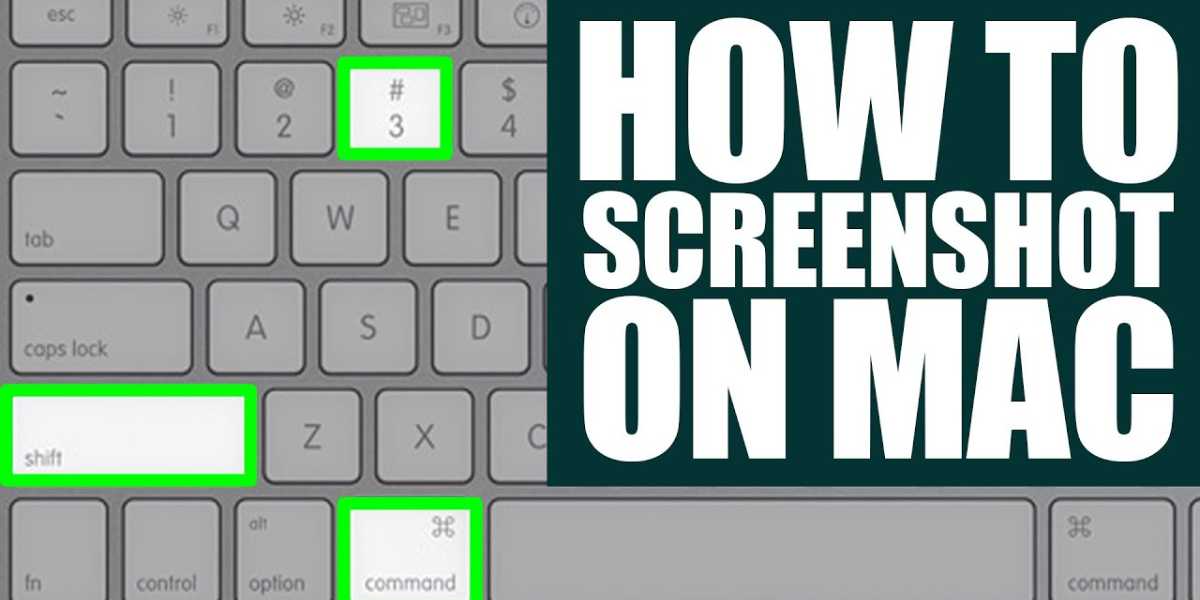
Step 1: Press the Command + Shift + 3 keys simultaneously.

Step 2: The screenshot will be saved on your desktop as a PNG file with the current date and time as the filename.

How to Screenshot on Mac?

Method 2: Capture a Specific Window

The second method is to take a screenshot of a specific window. This method is useful when you want to capture only one window, such as a browser window or an application.

Step 1: Click on the window you want to capture to make sure it is the active window.

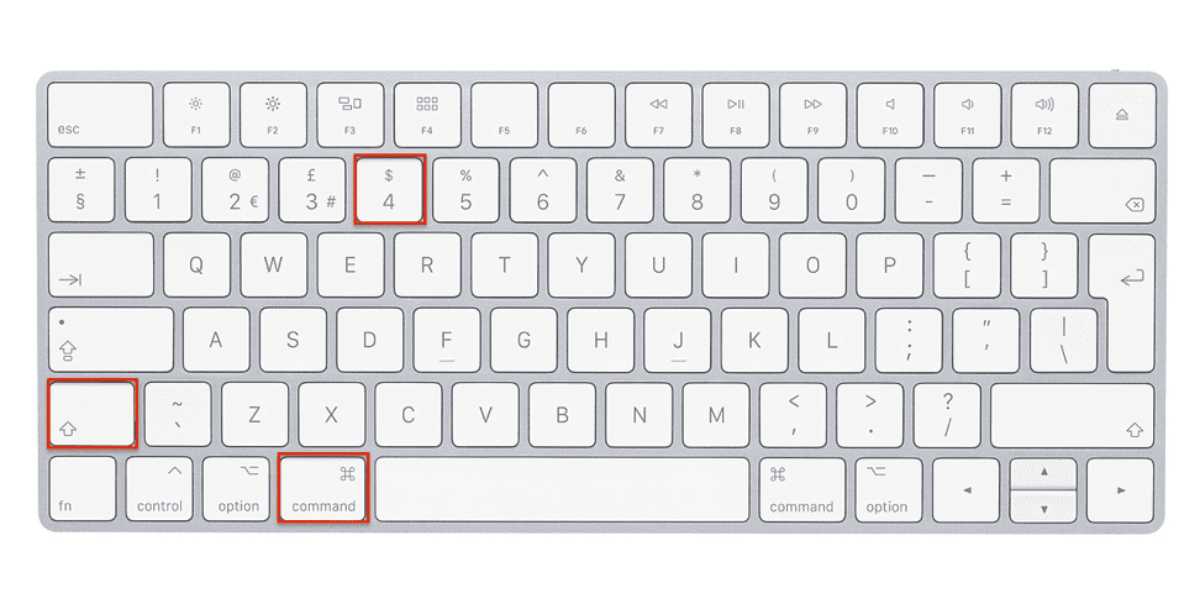
Step 2: Press the Command + Shift + 4 keys simultaneously.

Step 3: Your cursor will turn into a crosshair.

Step 4: Move the crosshair to the top left corner of the window you want to capture.

Step 5: Hold down the left mouse button and drag the crosshair to the bottom right corner of the window.

Step 6: Release the mouse button to take the screenshot.

Step 7: The screenshot will be saved on your desktop as a PNG file with the current date and time as the filename.

How to Screenshot on Mac? Capture a Specific Window

How to build a gaming Mac?

Method 3: Capture a Portion of the Screen

The third method is to take a screenshot of a portion of the screen. This method is useful when you want to capture only a specific portion of the screen, such as an image or a text.

Step 1: Press the Command + Shift + 4 keys simultaneously.

Step 2: Your cursor will turn into a crosshair.

Step 3: Move the crosshair to the top left corner of the area you want to capture.

Step 4: Hold down the left mouse button and drag the crosshair to the bottom right corner of the area.

Step 5: Release the mouse button to take the screenshot.

Step 6: The screenshot will be saved on your desktop as a PNG file with the current date and time as the filename.

Method 4: Capture a Touch Bar

The fourth method is to take a screenshot of the Touch Bar. This method is only applicable to Mac computers with a Touch Bar.

Step 1: Press the Command + Shift + 6 keys simultaneously.

Step 2: The screenshot will be saved on your desktop as a PNG file with the current date and time as the filename.

Method 5: Capture a Menu

The fifth method is to take a screenshot of a menu. This method is useful when you want to capture a menu that is displayed on your screen.

Step 1: Click on the menu you want to capture.

Step 2: Press the Command + Shift + 4 keys simultaneously.

Step 3: Your cursor will turn into a crosshair.

Step 4: Move the crosshair to the menu you want to capture.

Step 5: Hold down the left mouse button and drag the crosshair to cover the entire menu.

Step 6: Release the mouse button to take the screenshot.

Step 7: The screenshot will be saved on your desktop as a PNG file with the current date and time as the filename.

Method 6: Capture a Timed Screen

The sixth method is to take a timed screenshot. This method is useful when you need to capture a screenshot after a delay.

Step 1: Press the Command + Shift + 5 keys simultaneously.

Step 2: In the screenshot toolbar that appears at the bottom of the screen, click on the Timer button.

Step 3: Choose the amount of time you want to wait before taking the screenshot.

Step 4: Select the type of screenshot you want to take from the options available, such as capturing the entire screen, a specific window, or a portion of the screen.

Step 5: Click on the Capture button to start the countdown.

Step 6: After the countdown ends, the screenshot will be taken and saved on your desktop as a PNG file with the current date and time as the filename.

How to Screen Record on PC?

Other Tips and Tricks

In addition to the six methods discussed above, there are some additional tips and tricks that you can use to make taking screenshots on your Mac even more convenient.

Change the Default Screenshot Location

By default, all screenshots on a Mac are saved on the desktop. However, you can change the default location to a different folder. To do this, open Terminal and type in the following command:

defaults write com.apple.screencapture location /path/to/folder

Replace “/path/to/folder” with the file path to the folder where you want to save your screenshots.

Edit Screenshots before Saving

If you want to edit your screenshots before saving them, you can use the Markup tool in Preview. To do this, open the screenshot in Preview, click on the Markup button, and use the various editing tools to annotate, crop, or add text to your screenshot.

Use Third-Party Screenshot Apps

There are many third-party screenshot apps available for Mac that offer additional features such as advanced editing tools, automatic uploading to cloud storage, and more. Some popular options include Snagit, Skitch, and CloudApp.

Use the Grab App

The Grab app is a built-in screenshot tool that offers some additional features over the standard screenshot methods. To use Grab, follow these steps:

Step 1: Open the Grab app from the Utilities folder in the Applications folder.

Step 2: Choose the type of screenshot you want to take from the Capture menu, such as a timed screen or a selection screen.

Step 3: If you choose the timed screen, you will have 10 seconds to prepare the screen before the screenshot is taken. If you choose the selection screen, simply drag the crosshair cursor to select the area you want to capture.

Step 4: After the screenshot is taken, it will open in the Grab app where you can edit and save it.

How to Screenshot on Mac? Use the Grab App

Use the Touch Bar

If you have a MacBook Pro with a Touch Bar, you can take screenshots using the Touch Bar. To do this, follow these steps:

Step 1: Press the Shift + Command + 6 keys simultaneously.

Step 2: The screenshot will be taken and saved as a PNG file on the desktop.

Use the Screenshot App

The Screenshot app is a built-in screenshot tool that was introduced in macOS Mojave. To use the Screenshot app, follow these steps:

Step 1: Press the Command + Shift + 5 keys simultaneously.

Step 2: In the screenshot toolbar that appears at the bottom of the screen, choose the type of screenshot you want to take, such as capturing the entire screen, a specific window, or a portion of the screen.

Step 3: Click on the Options button to choose additional settings such as where to save the screenshot, whether to include the mouse pointer, and more.

Step 4: Click on the Capture button to take the screenshot.

Step 5: After the screenshot is taken, it will appear as a thumbnail in the bottom-right corner of the screen. Click on the thumbnail to edit or save the screenshot.

How to import iphone photos to PC?

How to Take a Screenshot on a Mac with a Timer?

Sometimes you may need to take a screenshot of something that requires a few seconds of preparation, such as opening a menu or dropdown. In such cases, using the timer feature can be useful. To take a screenshot on a Mac with a timer, follow these steps:

Step 1: Press the Command + Shift + 5 keys simultaneously.

Step 2: In the screenshot toolbar that appears at the bottom of the screen, click on the Timer button.

Step 3: Choose the amount of time you want to wait before taking the screenshot.

Step 4: Select the type of screenshot you want to take from the options available, such as capturing the entire screen, a specific window, or a portion of the screen.

Step 5: Click on the Capture button to start the countdown.

Step 6: After the countdown ends, the screenshot will be taken and saved on your desktop as a PNG file with the current date and time as the filename.

In conclusion, taking a screenshot on a Mac is a simple process that can be accomplished using various methods. Whether you want to capture the entire screen, a specific window, or a portion of the screen, there is a method for you. By using the tips and tricks outlined in this article, you can make taking and editing screenshots on your Mac even more convenient and efficient.

How to Add Bluetooth to PC?

0

In today’s world of connectivity, Bluetooth technology has become a necessity for many people. It is a wireless technology that allows you to connect your devices without using wires, making it an ideal solution for those who want to eliminate cable clutter from their workspace. If you’re looking to add Bluetooth functionality to your PC, then you’re in luck because it’s relatively easy to do. In this article, we’ll go over the steps you need to follow to add Bluetooth to your PC.

Step 1: Check if Your PC Already Has Bluetooth

Before you start looking for Bluetooth hardware to add to your PC, you should first check if your PC already has Bluetooth built-in. Many newer PCs come with Bluetooth functionality already built-in, so it’s worth checking if you have it before you spend money on an external Bluetooth adapter.

To check if your PC has Bluetooth, open the Start menu and type “Bluetooth” in the search bar. If you see an option for “Bluetooth and other devices settings,” click on it. If you have Bluetooth built-in, you’ll see a switch that says “Bluetooth.” If you don’t see the option, then your PC doesn’t have Bluetooth built-in.

Step 2: Purchase a Bluetooth Adapter

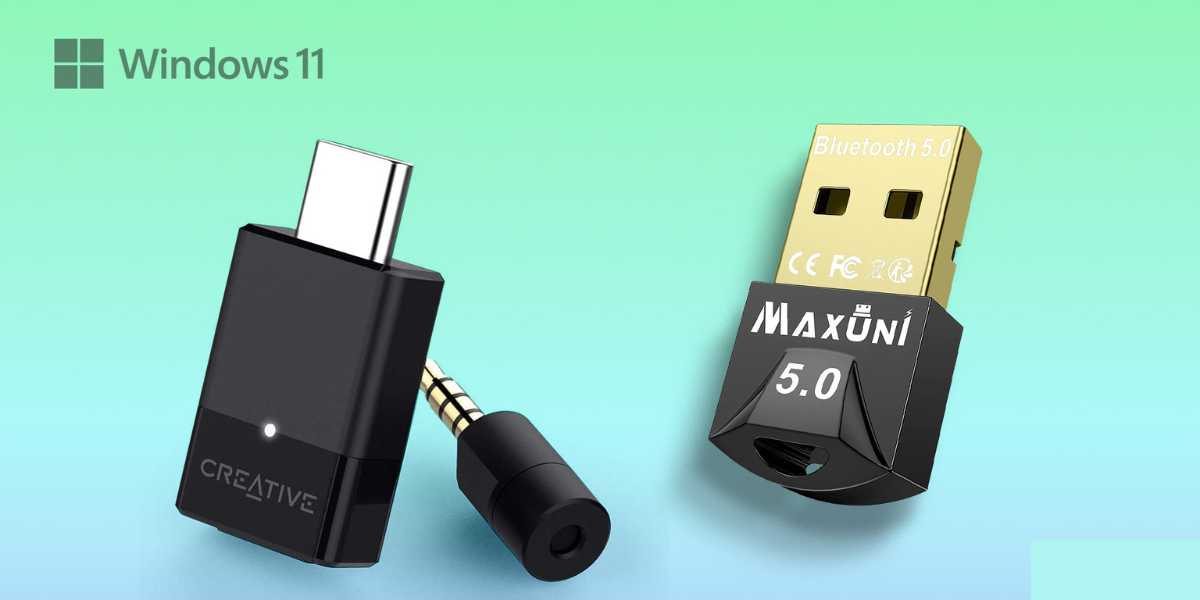
If your PC doesn’t have Bluetooth built-in, you’ll need to purchase a Bluetooth adapter. These adapters can be found at most electronics stores or online retailers, and they typically cost between $10 to $30.

When purchasing a Bluetooth adapter, make sure that it’s compatible with your PC’s operating system. Most Bluetooth adapters will work with Windows 10, but if you’re using an older version of Windows, you’ll need to make sure that the adapter you purchase is compatible with your operating system.

Step 2: Purchase a Bluetooth Adapter

Step 3: Install the Bluetooth Adapter

Once you have your Bluetooth adapter, it’s time to install it. Most Bluetooth adapters come with a driver CD that you’ll need to install on your PC. If your PC doesn’t have a CD drive, you can usually find the driver software online.

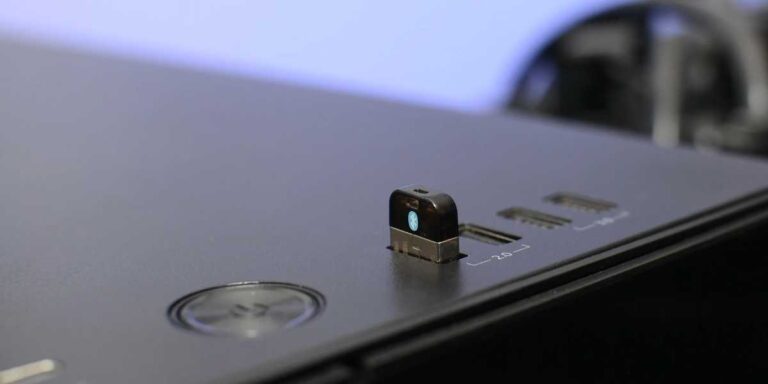
To install the Bluetooth adapter, simply plug it into a USB port on your PC. Windows will automatically detect the new hardware and ask you to install the driver software. Follow the prompts to install the software, and your Bluetooth adapter should be ready to use.

Step 4: Pair Your Devices

Now that you have Bluetooth added to your PC, it’s time to pair your devices. To do this, make sure that the device you want to pair is turned on and in pairing mode. This is typically done by holding down a button on the device until a light starts flashing.

On your PC, open the Start menu and click on “Settings.” From there, click on “Devices,” and then “Bluetooth and other devices.” Click on “Add Bluetooth or other device,” and then select “Bluetooth.” Windows will start searching for devices to pair with.

Once your device appears in the list, click on it to connect. You may need to enter a pairing code to connect to some devices. This code is usually provided in the device’s manual.

How to import iphone photos to PC?

Step 5: Enjoy Your Bluetooth Connection

Congratulations, you’ve successfully added Bluetooth to your PC and paired your devices! Now you can enjoy the convenience of wireless connectivity without having to deal with cables and wires.

Final Thoughts

Adding Bluetooth to your PC is a simple process that can be done by anyone, regardless of their technical expertise. By following the steps outlined in this article, you’ll be able to add Bluetooth functionality to your PC and start enjoying the benefits of wireless connectivity. Whether you want to connect your headphones, speakers, or other devices, Bluetooth makes it easy to do so. So, go ahead and add Bluetooth to your PC today, and enjoy the freedom of wireless connectivity!

Additional Tips

Here are some additional tips to keep in mind when adding Bluetooth to your PC:

  1. Ensure that your PC’s Bluetooth driver is up-to-date. You can do this by checking the manufacturer’s website or using a driver update tool.
  2. Keep in mind that Bluetooth has a limited range. If you’re experiencing connectivity issues, try moving your device closer to your PC.
  3. If you’re using a Bluetooth adapter, make sure it’s plugged into a USB port that’s located close to your devices. This can help improve connectivity.
  4. Some devices may have trouble connecting to your PC if there are other wireless devices nearby. Try turning off other wireless devices or moving them further away.
  5. If you’re experiencing connectivity issues, try resetting your Bluetooth device and then pairing it again with your PC.

In conclusion, adding Bluetooth to your PC is a simple process that can be done in just a few steps. Whether you’re connecting your headphones, speakers, or other devices, Bluetooth technology makes it easy to do so without having to deal with wires and cables. By following the steps outlined in this article, you’ll be able to enjoy the freedom of wireless connectivity in no time!

Additionally, Bluetooth technology has a number of advantages over traditional wired connections. It allows for easy pairing and connectivity between devices, and it also eliminates the need for messy and tangled cables. Plus, Bluetooth technology is compatible with a wide range of devices, from smartphones and tablets to speakers and headphones.

However, it’s important to keep in mind that Bluetooth technology also has its limitations. Its range is limited, and it can be susceptible to interference from other wireless devices. As such, it may not be the best choice for certain applications, such as high-speed data transfer.

How to Download YouTube Videos on PC?

Overall, adding Bluetooth to your PC is a great way to enhance your connectivity and simplify your workflow. Whether you’re using it to stream music to your speakers or connect your wireless headphones for video calls, Bluetooth technology offers a convenient and efficient solution. With just a few simple steps, you can enjoy the benefits of wireless connectivity and take your PC experience to the next level.

How to import iphone photos to PC?

0

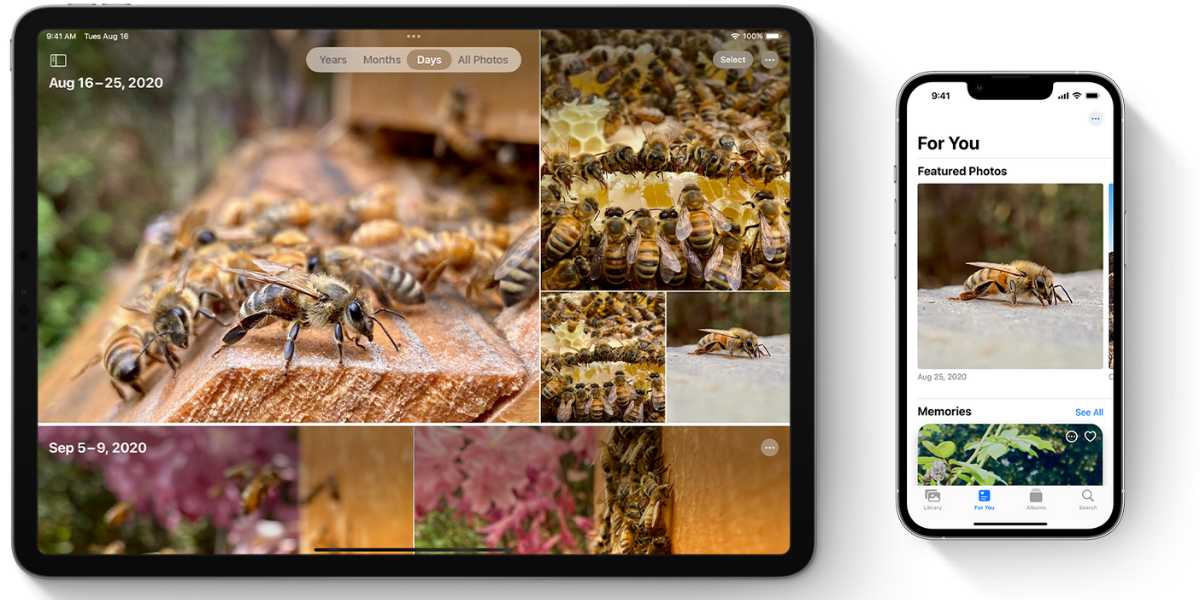
If you’re an iPhone user, you know how important your photos and videos can be. However, you may also find that your phone’s storage is filling up quickly, and you need to transfer your photos and videos to your PC for safekeeping or editing. Fortunately, importing your iPhone photos and videos to your PC is a straightforward process. In this guide, we’ll show you how to import your iPhone photos to your PC using different methods and tools.

Part 1: Using the Photos App on Windows 10

  • Windows 10 comes with a built-in Photos app that makes it easy to import photos from your iPhone.
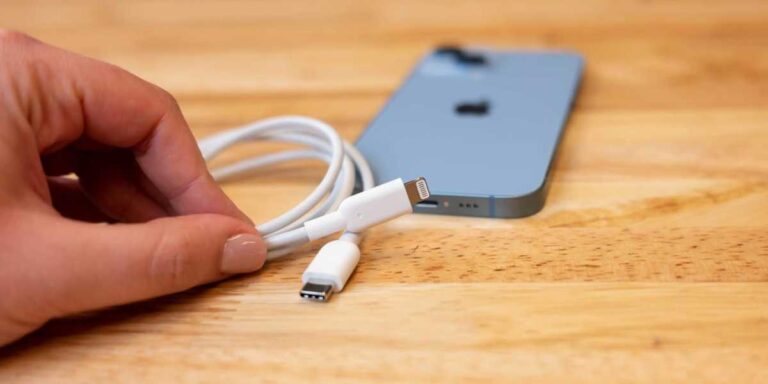
  • To import photos using the Photos app, connect your iPhone to your PC using a Lightning cable, open the Photos app, and click on Import > From a USB device.
  • You can select the photos you want to import and choose where to save them on your PC.

Part 2: Using iCloud Photos

  • iCloud Photos is a cloud-based service that stores your photos and videos in the cloud and syncs them across all your devices.
  • To import photos using iCloud Photos, you need to enable iCloud Photos on your iPhone and PC, and then download the photos from iCloud.com.
  • To enable iCloud Photos on your iPhone, go to Settings > [your name] > iCloud > Photos and turn on iCloud Photos.
  • To enable iCloud Photos on your PC, download and install iCloud for Windows, and then sign in with your Apple ID.
  • Once you’ve enabled iCloud Photos on your iPhone and PC, you can download your photos from iCloud.com by logging in with your Apple ID and selecting the photos you want to download.
Part 2: Using iCloud Photos

Part 3: Using File Explorer

  • You can also import photos from your iPhone to your PC using File Explorer.
  • To import photos using File Explorer, connect your iPhone to your PC using a Lightning cable, open File Explorer, and select your iPhone under This PC.
  • You can then open the DCIM folder and select the photos you want to import to your PC.
  • You can choose to copy and paste the photos to a folder on your PC or drag and drop them into a folder.

Part 4: Using Third-Party Tools

  • There are also many third-party tools available that can help you import your iPhone photos to your PC, such as iTunes, AnyTrans, and iMazing.
  • To use these tools, you need to download and install them on your PC and connect your iPhone to your PC.
  • You can then select the photos you want to import and choose where to save them on your PC.

Conclusion: Importing your iPhone photos and videos to your PC is a simple process that can help you free up space on your phone and keep your photos safe. By following these different methods and tools, you can easily transfer your iPhone photos to your PC and enjoy them on a bigger screen or edit them for your projects.

How to Download YouTube Videos on PC?

Tips and Considerations:

  • Before importing your photos to your PC, you may want to organize and delete any unwanted photos on your iPhone to save storage space.
  • Keep in mind that some methods, such as iCloud Photos, require an internet connection and may take longer to transfer large files.
  • Be mindful of any copyright restrictions and only import photos and videos that you have permission to use.
  • If you’re importing photos to your PC for editing purposes, make sure to choose a photo editor that supports your photo file format, such as JPEG or RAW.
  • Remember to safely eject your iPhone from your PC after importing your photos to avoid data loss or corruption.

Alternative Methods:

  • If you don’t have access to a Lightning cable or a PC, you can also import your iPhone photos using Wi-Fi or Bluetooth.
  • To import photos using Wi-Fi, enable Wi-Fi syncing on your iPhone and iTunes, and connect your iPhone to a Wi-Fi network. Your photos will automatically sync to your PC when both devices are on the same network.
  • To import photos using Bluetooth, enable Bluetooth on both your iPhone and PC, pair them together, and then select the photos you want to transfer.

Conclusion: Importing your iPhone photos to your PC can help you save storage space on your phone, keep your photos safe, and edit them on a bigger screen. With these different methods and tools, you can choose the one that works best for you and easily transfer your photos to your PC. Don’t forget to follow the tips and considerations to make the most out of your photo-importing experience.

How to Connect Xbox Controller to PC?

Method 1: Importing iPhone Photos Using a USB Cable

The easiest and most common way to import your iPhone photos to your PC is to use a USB cable. Follow these steps to transfer your photos:

Step 1: Connect Your iPhone to Your PC Connect your iPhone to your PC using a USB cable. Make sure your iPhone is unlocked and that you “Trust” the computer if prompted.

Step 2: Allow Access to Your iPhone Photos If this is the first time you are connecting your iPhone to your PC, you may be prompted to allow access to your iPhone photos. Click “Allow” to continue.

Step 3: Select Photos to Import Open the Photos app on your PC and select your iPhone under “Devices”. You can choose to import all photos or select specific ones by clicking the checkboxes next to the photos you want to import.

Step 4: Choose Where to Save Your Photos After selecting the photos you want to import, choose where you want to save them on your PC. Click “Import” to start the transfer.

Method 2: Importing iPhone Photos Using iCloud Photos

Another way to import your iPhone photos to your PC is by using iCloud Photos. Follow these steps:

Step 1: Enable iCloud Photos on Your iPhone On your iPhone, go to “Settings” > “Photos” and turn on “iCloud Photos”.

Step 2: Install iCloud for Windows on Your PC Download and install iCloud for Windows on your PC from the Apple website. Sign in with your Apple ID and password.

How to Screenshot on PC?

Step 3: Select Photos to Download Open iCloud for Windows and select “Photos”. Check the box next to “Download new photos and videos to my PC” and select “All photos and videos” or “Selected albums” if you only want to download specific photos.

Step 4: Choose Where to Save Your Photos After selecting the photos you want to download, choose where you want to save them on your PC. Click “Download” to start the transfer.

Method 3: Importing iPhone Photos Using the Photos App

If you’re using a Windows 10 PC, you can import your iPhone photos using the Photos app. Here’s how:

Step 1: Connect Your iPhone to Your PC Connect your iPhone to your PC using a USB cable. Make sure your iPhone is unlocked and that you “Trust” the computer if prompted.

Step 2: Open the Photos App Open the Photos app on your PC and select “Import” at the top right corner of the window.

Step 3: Select Photos to Import Choose the photos you want to import by clicking the checkboxes next to them. You can also choose to import all photos by clicking “Select all”.

Step 4: Choose Where to Save Your Photos After selecting the photos you want to import, choose where you want to save them on your PC. Click “Continue” to start the transfer.

How to Download YouTube Videos on PC?

0

YouTube is the largest video-sharing platform on the internet, offering a wide range of content from music videos and movie trailers to tutorials and vlogs. While YouTube provides a convenient platform for streaming videos online, sometimes you may want to download a video to your PC for offline viewing. In this article, we’ll show you how to download YouTube videos on your PC using a variety of methods and tools.

Download YouTube Videos Using an Online Downloader

One of the easiest ways to download YouTube videos on your PC is to use an online downloader. There are many online video downloaders available, but one of the most popular is SaveFrom.net. Here’s how to use SaveFrom.net to download YouTube videos:

  1. Go to YouTube and find the video you want to download.
  2. Copy the video’s URL from the address bar at the top of your browser.
  3. Go to SaveFrom.net and paste the video’s URL into the search bar.
  4. Click the Download button next to the video quality you want.
  5. Choose a location on your PC to save the video and click Save.
  6. Download YouTube Videos Using a Desktop App
Download YouTube Videos Using an Online Downloader

If you’re looking for a more powerful tool to download YouTube videos on your PC, you can use a desktop app like 4K Video Downloader. Here’s how to use 4K Video Downloader:

  1. Download and install 4K Video Downloader from the official website.
  2. Go to YouTube and find the video you want to download.
  3. Copy the video’s URL from the address bar at the top of your browser.
  4. Open 4K Video Downloader and click the Paste Link button.
  5. Choose the video quality you want and click Download.
  6. Choose a location on your PC to save the video and click Save.
  7. Download YouTube Videos Using a Browser Extension

How to Connect Xbox Controller to PC?

Another popular way to download YouTube videos on your PC is to use a browser extension like Video DownloadHelper. Here’s how to use Video DownloadHelper:

  1. Download and install Video DownloadHelper for your browser.
  2. Go to YouTube and find the video you want to download.
  3. Click the Video DownloadHelper icon in your browser’s toolbar.
  4. Choose the video quality you want and click Download.
  5. Choose a location on your PC to save the video and click Save.
  6. Download YouTube Videos Using VLC Media Player

If you already have VLC Media Player installed on your PC, you can use it to download YouTube videos. Here’s how:

  1. Download and install VLC Media Player from the official website.
  2. Go to YouTube and find the video you want to download.
  3. Copy the video’s URL from the address bar at the top of your browser.
  4. Open VLC Media Player and click Media > Open Network Stream.
  5. Paste the video’s URL into the Network URL box and click Play.
  6. Click Tools > Codec Information.
  7. Copy the Location URL from the bottom of the window and paste it into your browser’s address bar.
  8. Right-click the video and choose Save video as.

Tips and Tricks for Downloading YouTube Videos

  • Be cautious when downloading copyrighted content, as it may be illegal in your country.
  • Always make sure you’re downloading videos from a reputable source to avoid viruses or malware.
  • Check the video quality before downloading, as some videos may be low quality or have watermarks.
  • Downloading videos can take up a lot of space on your PC, so make sure you have enough storage available.

More on How to Download YouTube Videos on PC?

Part 1: Using YouTube Premium

  • YouTube Premium is a paid subscription service that offers many benefits, including ad-free videos, background playback, and offline viewing.
  • You can download YouTube videos on your PC with YouTube Premium by clicking the download button below the video and choosing the video quality.
  • YouTube Premium also offers a feature called Smart Downloads, which automatically downloads the next episode of a series you’re watching.

Part 2: Using a Download Manager

  • A download manager is a software tool that manages and accelerates the download process.
  • You can download YouTube videos on your PC using a download manager like Internet Download Manager (IDM), EagleGet, or Free Download Manager (FDM).
  • To download a video using a download manager, you need to copy the video’s URL, paste it into the download manager, and choose the video quality and format.

Part 3: Using a Web-Based Tool

  • You can also download YouTube videos on your PC using a web-based tool like SaveFrom.net or Y2Mate.
  • These tools work by extracting the video’s URL and downloading it to your PC.
  • To use a web-based tool, you need to copy the video’s URL, paste it into the tool’s search bar, and choose the video quality and format.

Part 4: Using a Browser Extension

  • A browser extension is a small software program that adds extra functionality to your web browser.
  • You can download YouTube videos on your PC using a browser extension like Video DownloadHelper, YouTube Video and Audio Downloader, or Easy YouTube Video Downloader Express.
  • To use a browser extension, you need to install it in your browser, open the YouTube video you want to download, and click the download button.

Conclusion

In conclusion, downloading YouTube videos on your PC is a simple process that can be done using a variety of methods and tools. Whether you choose to use an online downloader, a desktop app, a browser extension, or VLC Media Player, always make sure you’re downloading from a reputable source and be mindful of any copyright restrictions. With these tips and tricks in mind, you can easily download YouTube videos on your PC and enjoy them offline at your convenience.

How to Screenshot on PC?

In addition, it’s worth noting that some videos on YouTube may have restrictions or be blocked from being downloaded. This is often the case for videos with copyright restrictions or those that have been uploaded by channels with limited access. In these cases, you may need to use a VPN or seek out alternative sources for the video you want to download.

Overall, downloading YouTube videos on your PC can be a useful tool for anyone looking to enjoy their favorite videos offline or create content from YouTube footage. By following these simple steps and being mindful of any copyright restrictions, you can easily download videos from YouTube and enjoy them on your PC.

How to Connect Xbox Controller to PC?

0

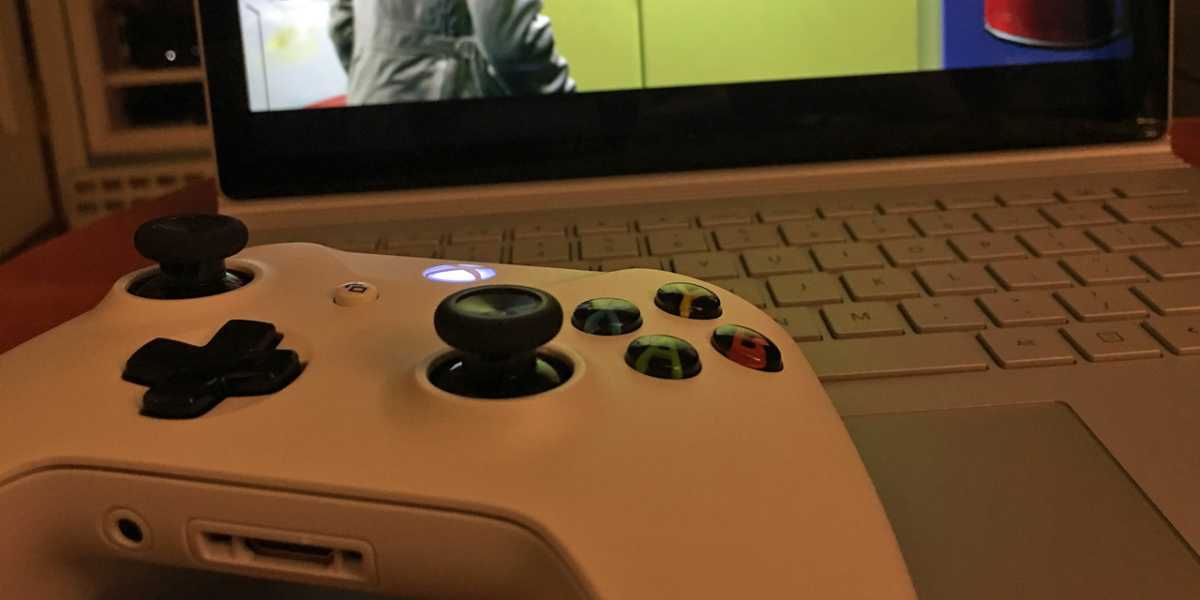
Gaming on PC has become increasingly popular in recent years, and many gamers prefer to use a game controller to play their favorite games. Xbox controllers are a popular choice for PC gamers, as they are compatible with Windows and offer a comfortable and familiar gaming experience. If you’re looking to connect an Xbox controller to your PC, follow these simple steps.

Step 1: Check Your System Requirements

Before you can connect an Xbox controller to your PC, you need to make sure your system meets the requirements. Your PC must be running Windows 7 or later, and you’ll need a USB port to connect the controller. You can also connect an Xbox controller to your PC wirelessly if you have a compatible adapter.

Step 2: Connect Your Xbox Controller to Your PC

To connect your Xbox controller to your PC, you’ll need a USB cable. Connect one end of the cable to your controller and the other end to your PC’s USB port. Your PC will automatically recognize the controller and install the necessary drivers.

If you’re using an Xbox One wireless controller, you’ll need to use a compatible adapter to connect it to your PC. The adapter plugs into your PC’s USB port and allows you to connect up to eight controllers wirelessly.

Step 2: Connect Your Xbox Controller to Your PC

Step 3: Test Your Controller

Once your controller is connected to your PC, it’s important to test it to make sure it’s working properly. Open the “Devices and Printers” menu in Windows and look for your controller. You should see an icon labeled “Xbox 360 Controller for Windows” or “Xbox One Controller.” Right-click on the icon and select “Game controller settings.” This will open the “Game Controllers” window, where you can test your controller’s buttons and joysticks.

Step 4: Customize Your Controller

If you want to customize your Xbox controller’s button mapping or sensitivity, you can do so using the Xbox Accessories app. The app is available for free in the Microsoft Store and allows you to customize your controller’s settings to suit your preferences.

How to Screenshot on PC?

Step 5: Enjoy Your Games!

Once your Xbox controller is connected to your PC and working properly, you’re ready to start gaming! Most modern games are designed to work with Xbox controllers, so you shouldn’t have any trouble finding games to play. Whether you’re playing first-person shooters, sports games, or racing games, an Xbox controller can enhance your gaming experience and give you an edge over your competition.

Tips for Using Xbox Controllers on PC

While connecting an Xbox controller to your PC is relatively simple, there are a few tips that can help you get the most out of your gaming experience.

Tips for Using Xbox Controllers on PC

1. Use a Wired Connection

While you can connect an Xbox controller to your PC wirelessly using a compatible adapter, a wired connection is generally more reliable and less prone to latency or connection issues. Plus, you don’t have to worry about batteries running out in the middle of a game.

2. Customize Your Button Mapping

If you’re used to playing games on a different platform or controller, you may find that the default button mapping on an Xbox controller doesn’t feel intuitive. The Xbox Accessories app allows you to customize your controller’s button mapping to suit your preferences, so take some time to experiment and find the settings that work best for you.

3. Adjust Your Sensitivity Settings

Different games require different levels of sensitivity when it comes to joysticks and triggers. If you find that your controller’s sensitivity settings aren’t quite right for a particular game, you can adjust them using the Xbox Accessories app.

4. Consider Getting a Controller with Paddles

If you’re a serious gamer, you may want to consider investing in an Xbox controller with paddles. Paddles are small buttons on the back of the controller that can be programmed to perform specific actions, such as jumping or reloading. This can give you an advantage in competitive games by allowing you to perform actions more quickly and efficiently.

5. Keep Your Controller Clean and Maintained

Like any piece of hardware, your Xbox controller will last longer and perform better if you take good care of it. Make sure to keep it clean and free of dust and debris, and store it in a safe place when not in use. If you’re using a wired connection, be careful not to pull on the cable or damage the connector.

How to Connect Xbox controller to PC – Troubleshooting Tips

While connecting your Xbox controller to your PC is generally a straightforward process, you may encounter some issues along the way. Here are some common troubleshooting tips to help you get your controller up and running:

1. Make sure your controller is up-to-date

If you’re having trouble connecting your Xbox controller to your PC, it’s possible that the controller’s firmware needs to be updated. To check for updates, connect your controller to your Xbox One console and go to Settings > Devices & accessories > Xbox Wireless Controller > Device info. If an update is available, follow the on-screen instructions to install it.

How to Screen Record on PC?

2. Try a different USB port

If you’re using a wired connection and your controller isn’t being recognized by your PC, try plugging it into a different USB port. Some USB ports may not provide enough power to support the controller, so try using a different port to see if that solves the issue.

3. Check for driver updates

If you’re using Windows 10, your PC should automatically download and install the necessary drivers for your Xbox controller. However, if you’re having trouble getting your controller to work, it’s possible that the drivers need to be updated. To check for updates, go to Settings > Update & Security > Windows Update and click “Check for updates.”

4. Make sure your controller is properly paired

If you’re using a wireless connection, make sure that your controller is properly paired with your PC. To do this, press and hold the Xbox button on your controller to turn it on, then press the sync button on the front of your Xbox One console until the light on the controller starts flashing. Press the sync button again on the controller until the light stops flashing and stays lit.

5. Try a different controller

If none of the above troubleshooting tips work, it’s possible that there’s an issue with your controller. Try connecting a different controller to your PC to see if that solves the problem. If the new controller works, then the issue is likely with your original controller and it may need to be repaired or replaced.

How to Connect Xbox controller to PC – Conclusion

Connecting an Xbox controller to your PC is a simple and straightforward process that can greatly enhance your gaming experience. By following these steps, you can easily connect your Xbox controller to your PC and start playing your favorite games with ease. So go ahead and connect your Xbox controller to your PC today, and enjoy a whole new level of gaming!

How to Screenshot on PC?

0

Taking screenshots on a PC can be useful in various situations, from capturing important information to saving a funny meme. However, if you are new to computers or have never taken a screenshot before, the process may seem daunting. In this article, we will explain how to take a screenshot on PC step by step, using different methods and software on how to screenshot on windows.

Method 1: Using the PrtScn Key

The PrtScn (Print Screen) key is the easiest and most common way to take a screenshot on PC. Follow the steps below:

Step 1: Find the PrtScn key on your keyboard. It is usually located on the top row, near the function keys.

Step 2: Press the PrtScn key once to capture the entire screen. If you only want to capture a specific window, press the Alt + PrtScn keys together.

Method 1: Using the PrtScn Key

Step 3: Open an image editing software, such as Paint or Photoshop, and press Ctrl + V (or right-click and select “Paste”) to paste the screenshot.

Step 4: Save the screenshot as a JPG or PNG file to your desired location.

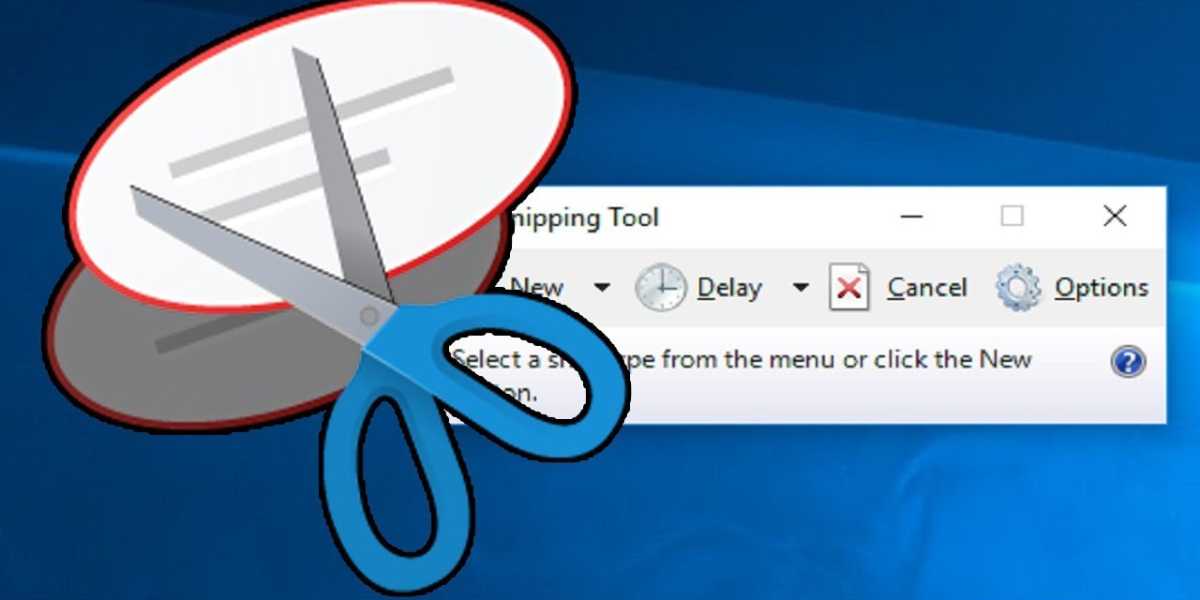
Method 2: Using the Snipping Tool

The Snipping Tool is a built-in Windows application that allows you to take screenshots of specific areas of your screen. Here’s how to use it:

Step 1: Type “Snipping Tool” in the Windows search bar and open the application.

Step 2: Click on “New” to start a new snip.

And Step 3: Select the area of the screen that you want to capture by dragging the cursor around it.

Method 2: Using the Snipping Tool

Step 4: Once you have captured the desired area, the Snipping Tool will open a new window with your screenshot. You can annotate or highlight the screenshot using the built-in tools.

Step 5: Save the screenshot by clicking on “File” and selecting “Save As.”

Method 3: Using Keyboard Shortcuts

Windows also offers several keyboard shortcuts that you can use to take screenshots quickly. Here are the most common ones:

  • Windows Key + PrtScn: This captures the entire screen and saves it to the Screenshots folder in your Pictures library.
  • Windows Key + Shift + S: This opens the Snipping Tool with the “Rectangular Snip” option selected. You can then select the area of the screen you want to capture.
  • Windows Key + Alt + PrtScn: This captures the active window only.

Method 4: Using Third-Party Software

There are many third-party software options available that offer more advanced screenshot-taking features. Here are a few popular ones:

  • Lightshot: A free software that allows you to capture screenshots, edit them, and share them online.
  • Greenshot: A free and open-source software that lets you take screenshots of a specific area, window, or fullscreen, and annotate them.
  • Snagit: A paid software that offers advanced screenshot-taking features, such as capturing scrolling screens, recording videos, and creating GIFs.

How to screenshot on windows – Tips and Tricks

  • If you take screenshots frequently, consider creating a shortcut key for your preferred method.
  • To capture a screenshot of a tooltip or menu, use the Windows Snipping Tool or a third-party software.
  • If you’re taking a screenshot of a webpage, use the “Full Page” or “Visible Area” option in the Snipping Tool to capture the entire webpage.
  • To capture a screenshot in-game, use the game’s built-in screenshot feature or a third-party software that supports game capturing.

How to screenshot on windows – Conclusion

Taking a screenshot on PC is a simple process that can be done using different methods and software. Whether you’re using the PrtScn key, the Snipping Tool, keyboard shortcuts, or third-party software, make sure to save the screenshot in a format that works for you, such as JPG or PNG. Additionally, it’s important to know that there are tips and tricks that can make the screenshot-taking process easier and more efficient.

In conclusion, taking screenshots on PC is a valuable skill that can be used in a variety of situations. By following the steps and tips outlined in this article, you’ll be able to take screenshots quickly and easily, whether you’re a beginner or an experienced user. So, start practicing and enjoy the benefits of capturing your computer screen with ease!

How to Screen Record on PC?

Remember to also be respectful of others’ privacy when taking screenshots. Avoid capturing sensitive or confidential information, and always ask for permission before taking a screenshot of someone else’s content or communication.

How to screenshot on windows – Restrictions

In addition, it’s important to note that some websites or software may have restrictions on taking screenshots. Make sure to read their terms and conditions before taking any screenshots to avoid violating any rules or policies.

Lastly, keep in mind that taking a screenshot is not always the best solution. In some cases, copying and pasting the information or using a screen recording may be more effective. Evaluate the situation and choose the method that best fits your needs.

In conclusion, taking screenshots on PC is a simple and useful skill that can enhance your productivity and communication. By following the steps and tips outlined in this article, you’ll be able to take screenshots efficiently and respectfully.

How to Factory Reset PC?

Additionally, it’s important to organize and store your screenshots properly. Over time, you may accumulate a large number of screenshots, which can make it difficult to find the ones you need. To avoid this, consider creating a folder on your computer dedicated to screenshots, and organize them by date or topic. This will make it easier to find the screenshot you need when you need it.

Finally, don’t forget to share your screenshots with others when appropriate. Screenshots can be a great way to share information, explain a problem, or simply express yourself. Just make sure to respect others’ privacy and copyright, and always give credit where credit is due.

In conclusion, taking screenshots on PC is a useful skill that can improve your productivity and communication. By following the steps and tips outlined in this article, you’ll be able to take screenshots efficiently and effectively, while also respecting others’ privacy and copyright. So go ahead and capture your computer screen with confidence!